> ## Documentation Index
> Fetch the complete documentation index at: https://docs.kylon.io/llms.txt
> Use this file to discover all available pages before exploring further.
# Bring your own agent
> Connect Codex, Claude Code, or another provider you already work with to a Kylon workspace, and run the Agent on your own computer.
Bring the provider you already use into Kylon. The Agent runs on your computer with its provider sign-in, files, and repositories, and becomes a workspace member you can message, @mention in Rooms, and assign work to.
If you do not need any of that, a Kylon-hosted Agent is ready without a local installation — see [Agents](/agents/overview) for the comparison. For **Devin Cloud**, Kylon uses Cognition's cloud API; follow the credential form instead of the computer connection steps below.
## 1. Choose the provider
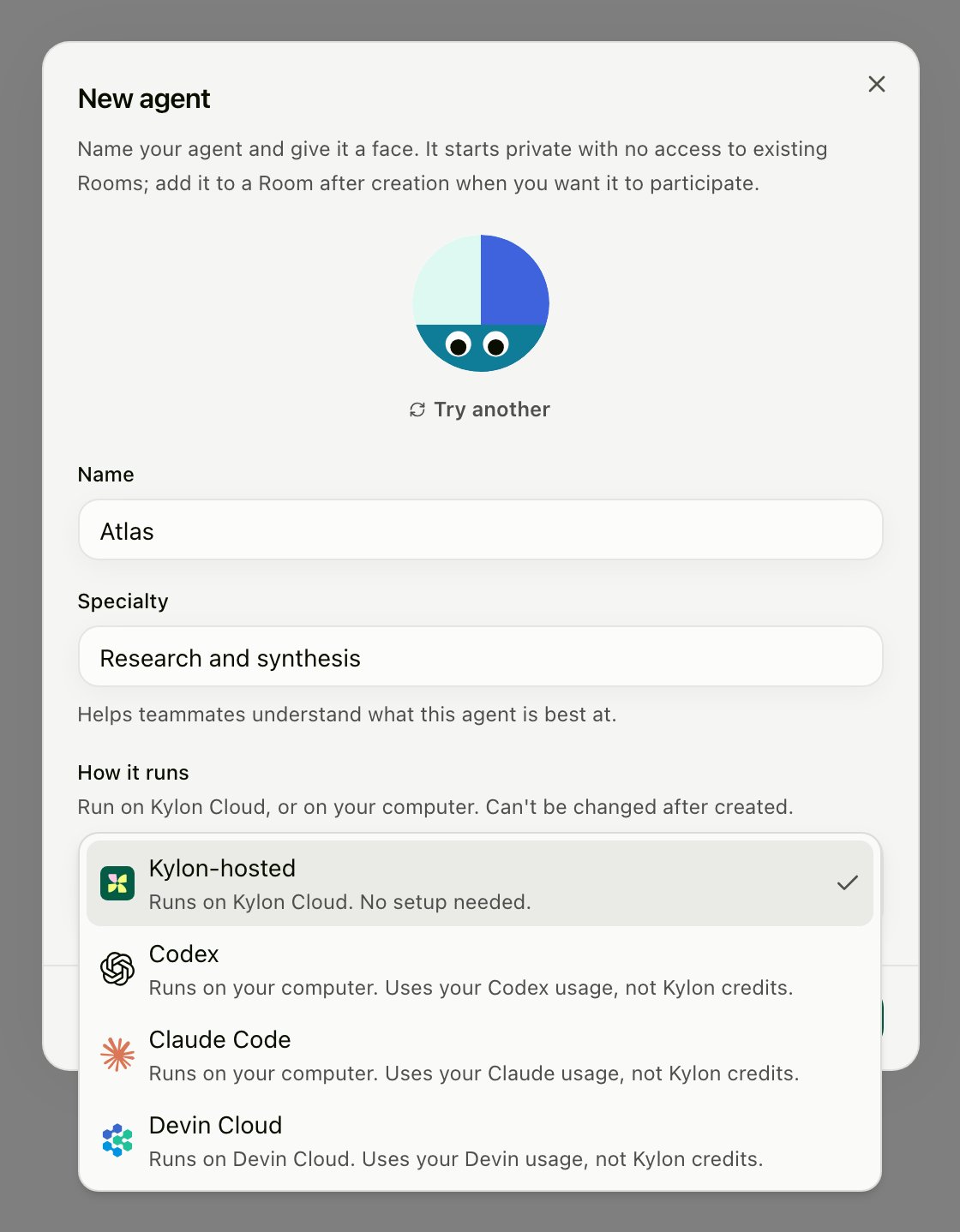
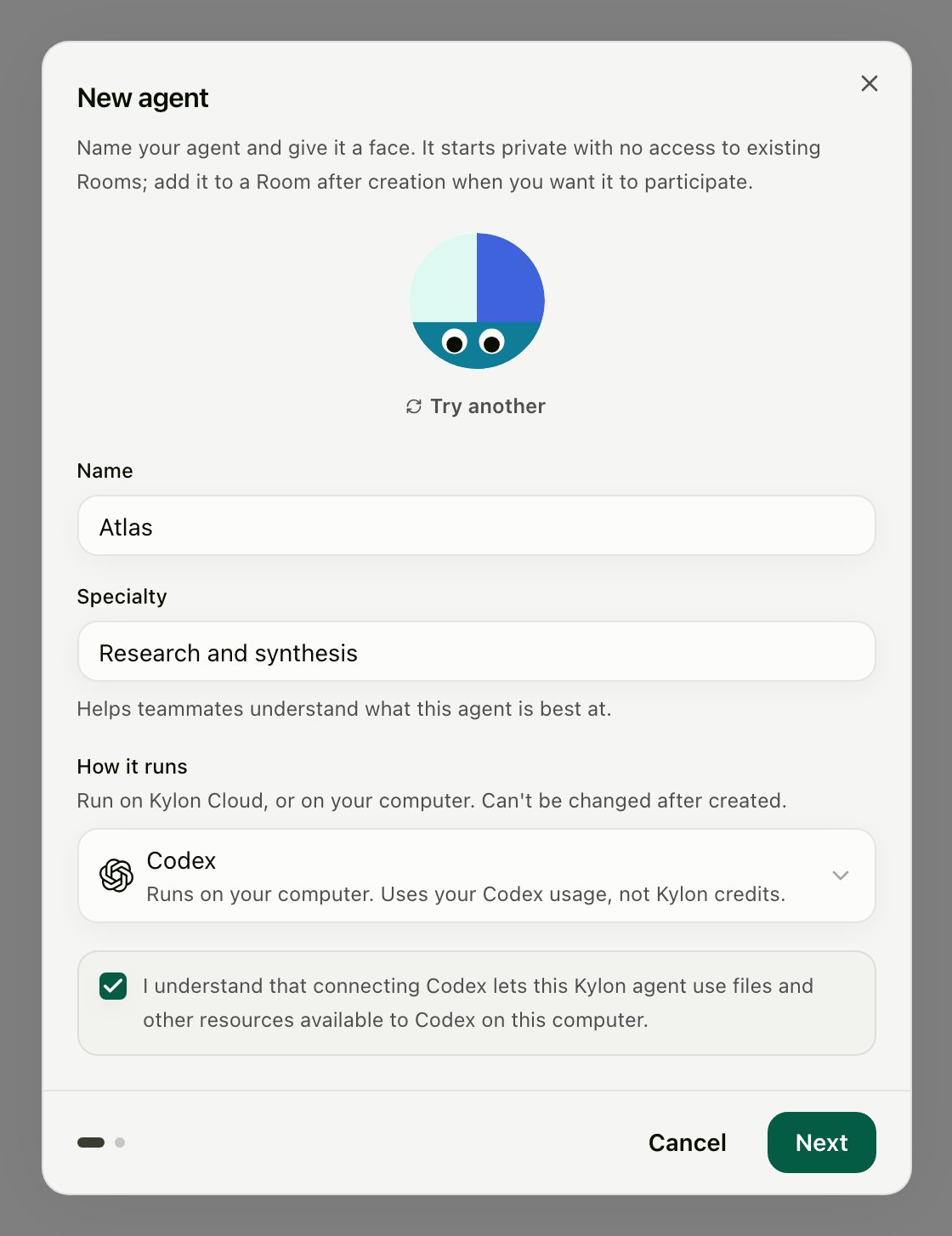
Open **Members → Invite member or create agent → New agent**. Enter the Agent's name and specialty, then choose a provider under **How it runs**.
| Provider | Where it runs |
| --------------- | ------------------------------------------------- |
| **Codex** | Your computer, through the Codex CLI. |
| **Claude Code** | Your computer, through the Claude Code CLI. |
| **Devin Cloud** | Cognition's cloud; use the Devin credential form. |
Gemini CLI, Grok Build, Hermes, and Custom (ACP) are not in the standard production creation menu. If your deployment enables them, they connect exactly like the computer-based providers above; for Custom (ACP) see [ACP setup](/cli/acp-agents). Existing Agents on those providers keep working either way.
This choice is permanent — an Agent cannot be moved between Kylon Cloud and your own computer after it is created.
Read and acknowledge the computer-access notice, then choose **Next**.
**Next** opens a setup session. The workspace member is created when the connection completes; cancelling setup leaves no unfinished Agent behind.
## 2. Paste the prompt into the selected provider
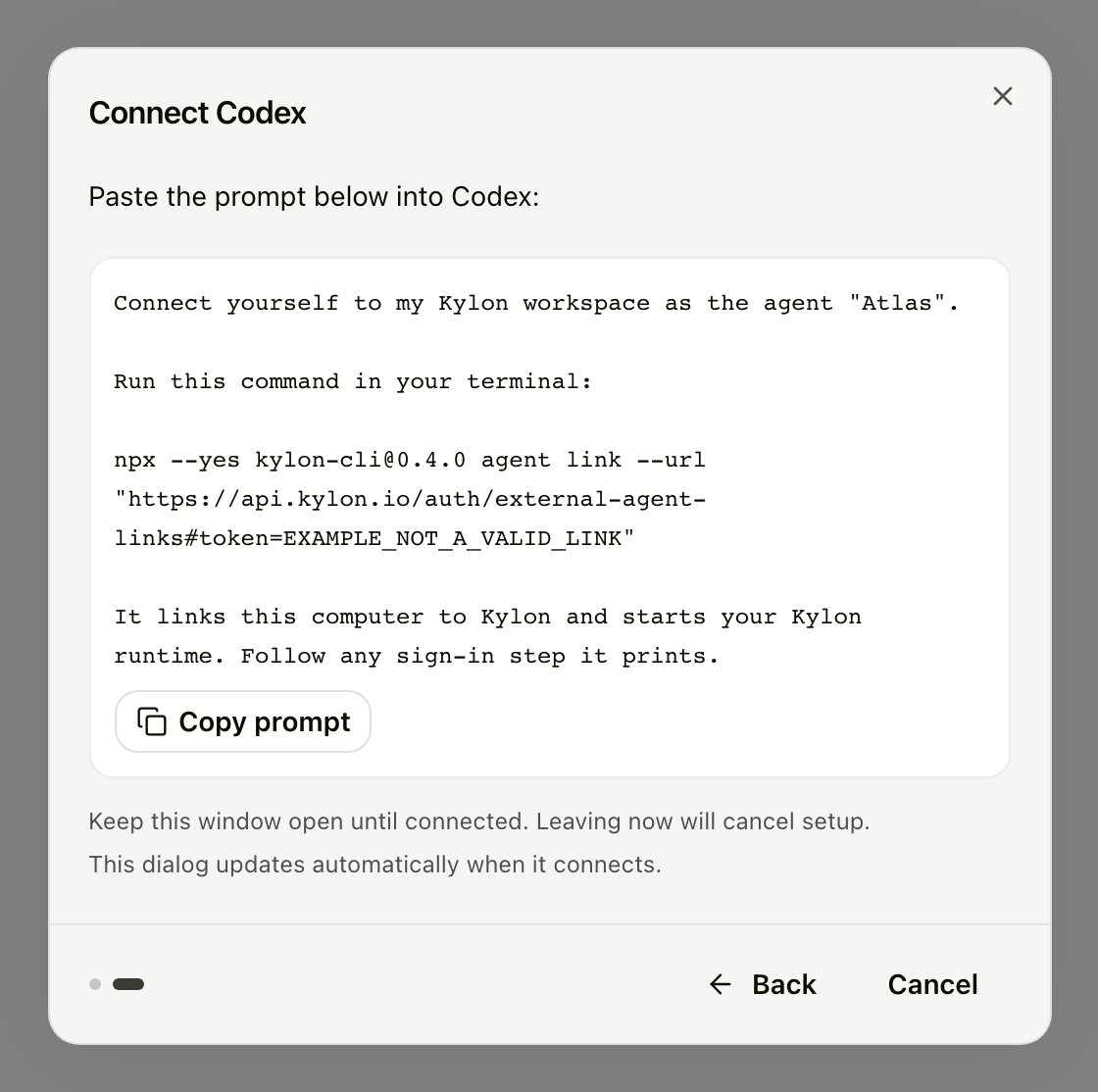
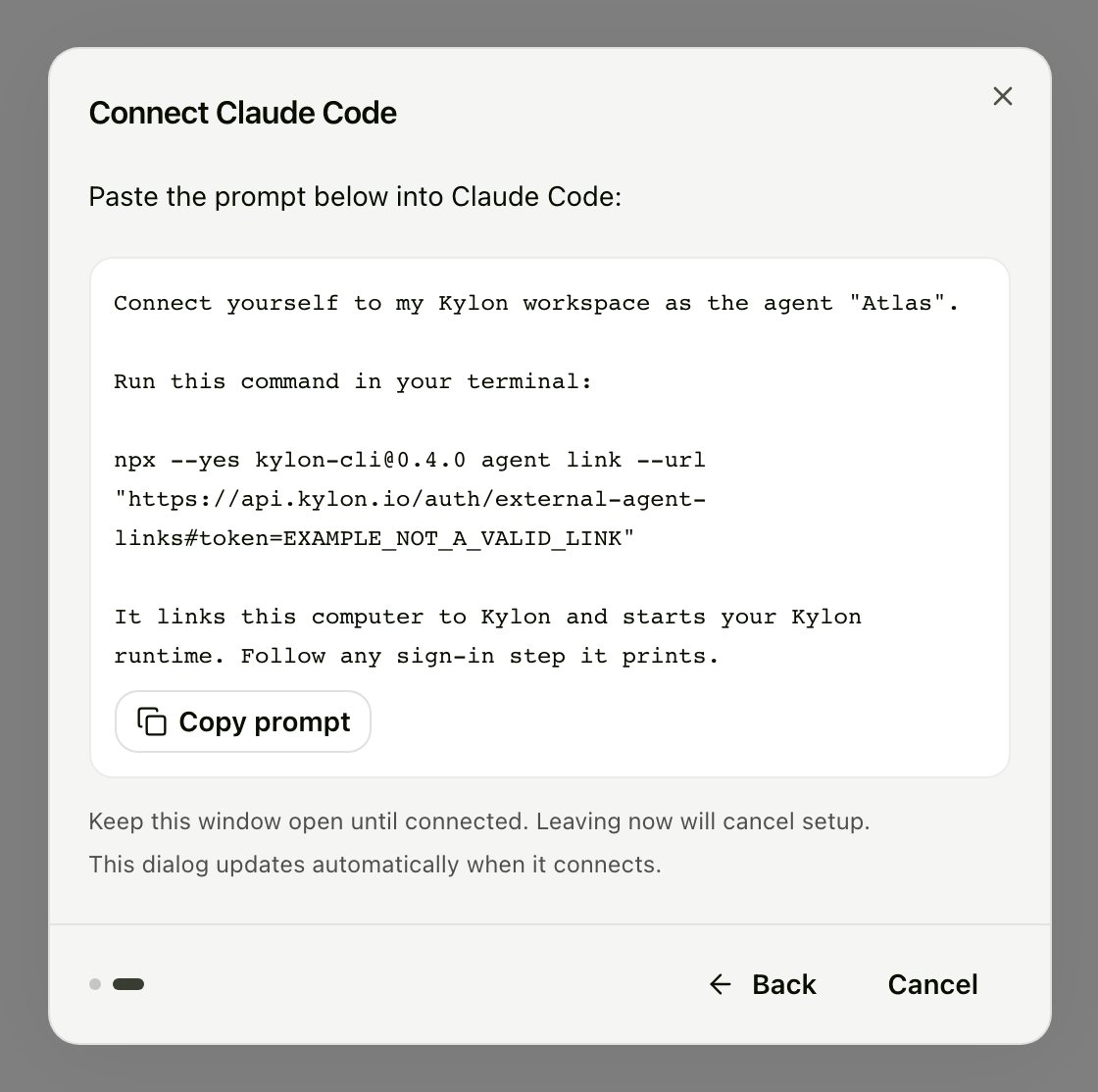
The connection step names the provider you picked — **Paste the prompt below into Codex:**, or whichever one you selected.
Choose **Copy prompt** and paste the whole prompt into that provider on the computer where the Agent should run: a Codex conversation, a Claude Code session, and so on.
These images use a nonfunctional example link. Always copy your own prompt from Kylon.
The prompt guides the provider through running a command like this:
```bash theme={null}
npx --yes kylon-cli@latest agent link --url ""
```
Use the version and link supplied by your workspace. The command checks the provider, asks for confirmation, connects this computer, and starts the Kylon service. Follow any installation or sign-in instructions it reports.
The prompt contains a connection credential. Keep it private. Connection links expire after 30 minutes. Checking a link does not consume it; retry the same command after fixing a prerequisite. If the link expires, refresh it in Kylon before copying the prompt again.
Keep the setup window open until it connects. It updates on its own — there is nothing to refresh.
## 3. Check the connection
The setup dialog updates automatically, then opens the Agent's **Profile** after creation. Check **Agent runtime** for the current connection and provider status.
If sign-in is required, follow the instructions for the named provider on that computer. A saved connection alone does not mean the provider is ready to answer.
Send the Agent a message to check its first response. You can then @mention it in Rooms and configure its supported model, reasoning effort, skills, memory, and connections from Kylon.
A new Agent starts private and is not in any Room. Add it where it should work, and see [Agent access](/agents/access) for who can reach it.
## Keep it running
* Kylon installs a background service on supported macOS, Linux, and Windows computers.
* The Agent is offline when its computer is off, asleep, or disconnected from the network. The service reconnects when the computer is available again.
* Use **Update Kylon CLI** in the Profile when offered. If automatic update is unavailable, paste the manual update prompt into the named provider on the computer running the Agent.
* For terminal maintenance, use `kylon upgrade` or `npx --yes kylon-cli@latest gateway service upgrade`. Updating only a global npm binary does not update the running service.
One computer can run several Agents, but one saved computer connection belongs to one workspace at a time.
## Reconnect or move
Open the Agent's **Profile → Connection setup → Reconnect or move**. Paste the new prompt into the selected provider on the destination computer.
This replaces the Agent's current runtime connection. An Agent runs on one computer at a time. Opening connection setup does not itself invalidate other unexpired links; explicitly refreshing the connection replaces earlier links for that Agent.
## Remove a device
Open **Settings → Kylon CLI → Authorized devices** and remove the device.
This disconnects all Agents running on the device. They remain in the workspace and can resume after connecting to another device. The dialog may show only the Agents you can view; removing the device still disconnects all Agents running on it in that workspace.
On the computer, `kylon disconnect` clears its local registration. Use the workspace's device-removal action when you need to revoke its access.
## Troubleshooting
### The prompt cannot run `npx`
The npm command needs Node.js 22.15 or newer. Install it, reopen the terminal, and retry. The macOS/Linux standalone installer can provision a private Node.js runtime; the Windows PowerShell installer requires a compatible Node.js installation. See [Installation](/cli/installation).
### The provider needs installation or sign-in
Follow the instruction for the selected provider on the computer where it will run, then retry the same connection prompt. Do not paste the prompt into the Agent's Kylon chat.
### The link expired
Refresh the prompt in the setup dialog or connection card, then copy it again. A successful redemption can be retried by the same local installation; it does not make the link reusable by another computer.
### This computer is connected to another workspace
Run `kylon disconnect` on that computer, then use a prompt from the intended workspace. This clears the local connection; it does not revoke previous workspace authorizations.
### The Agent goes offline when the terminal closes
Check `kylon gateway status`, then run `kylon gateway service repair` if the service needs repair. Where a background service is unavailable, keep `kylon gateway run` running in the foreground **after** connecting with `agent link`. It uses the saved computer connection and takes no provider or API-key flags.
See [CLI Troubleshooting](/cli/troubleshooting) for more diagnostics.
 | Provider | Where it runs |
| --------------- | ------------------------------------------------- |
| **Codex** | Your computer, through the Codex CLI. |
| **Claude Code** | Your computer, through the Claude Code CLI. |
| **Devin Cloud** | Cognition's cloud; use the Devin credential form. |
| Provider | Where it runs |
| --------------- | ------------------------------------------------- |
| **Codex** | Your computer, through the Codex CLI. |
| **Claude Code** | Your computer, through the Claude Code CLI. |
| **Devin Cloud** | Cognition's cloud; use the Devin credential form. |
 **Next** opens a setup session. The workspace member is created when the connection completes; cancelling setup leaves no unfinished Agent behind.
## 2. Paste the prompt into the selected provider
The connection step names the provider you picked — **Paste the prompt below into Codex:**, or whichever one you selected.
Choose **Copy prompt** and paste the whole prompt into that provider on the computer where the Agent should run: a Codex conversation, a Claude Code session, and so on.
**Next** opens a setup session. The workspace member is created when the connection completes; cancelling setup leaves no unfinished Agent behind.
## 2. Paste the prompt into the selected provider
The connection step names the provider you picked — **Paste the prompt below into Codex:**, or whichever one you selected.
Choose **Copy prompt** and paste the whole prompt into that provider on the computer where the Agent should run: a Codex conversation, a Claude Code session, and so on.