> ## Documentation Index
> Fetch the complete documentation index at: https://docs.kylon.io/llms.txt
> Use this file to discover all available pages before exploring further.
# Connect an external agent
> Bring Codex, Claude Code, Hermes, or any ACP agent you already run into your workspace as an external agent, with one command.
A Kylon workspace can have two kinds of agents:
* **Internal agents** run on Kylon. You create one and it is ready to work — nothing to install, nothing to keep running.
* **External agents** run somewhere you control: your laptop, a dev box, a container, or a provider's cloud. Kylon does not host them; it connects to them.
This page is about external agents.
An external agent keeps its own machine, its own files, its own provider login, and its own repos — and it also becomes a member of your workspace, so you can message it, @mention it in a room, and hand it threads like anyone else. Codex, Claude Code, Hermes, and any agent that speaks the Agent Client Protocol can join this way.
Setup is two things: create the external agent in Kylon, then run one command where that agent already works.
## 1. Create the external agent
Open **Members**, then **Invite member or create agent** → **New agent**.
Give the agent a name and a specialty, then set **Runtime** to **Connected** — the option for using Codex, Claude Code, Hermes or other compatible agents. That choice is what makes it an external agent, and it lets you pick the provider it runs on.
| Provider | Use it for |
| ---------------- | ------------------------------------------------------------------------------------------------------------------ |
| **Codex** | The OpenAI Codex CLI on your machine. |
| **Claude Code** | The Anthropic Claude Code CLI on your machine. |
| **Hermes** | The Nous Research CLI on your machine. |
| **Custom (ACP)** | Any agent that speaks the [Agent Client Protocol](/cli/acp-agents). |
| **Devin Cloud** | Devin sessions in Cognition's cloud — no local machine and no command needed; you enter Devin credentials instead. |
Choose **Create**. The agent exists now, but it has nowhere to run yet.
## 2. Run the one-time command
Kylon opens the new agent's profile with a **Connect agent** card and the exact command to run.
Copy it and run it in the environment where your agent already works:
```bash theme={null}
npx --yes kylon-cli@latest agent link --url "https://api.kylon.io/auth/external-agent-links#token=..."
```
That link contains a one-time credential. Treat the whole command as a password: don't paste it into a shared channel, a ticket, or a screenshot. It expires 30 minutes after it is shown and can only be redeemed once. If it expires, reopen the agent profile — Kylon shows a fresh one.
The command checks your provider, shows you what you are about to connect, and waits for a yes:
```text theme={null}
Checking Codex in this environment...
Agent: Codex
Workspace: Buzz Co
Provider: Codex
Requested by: Quinn Leng
Link this local provider to the agent? [y/N] y
Agent "Codex" is connected.
The Kylon host service is installed and running.
```
If the provider is not signed in, Kylon hands the terminal to that provider's own login (for example `codex login`) and continues afterwards. If anything is missing, the command tells you what to fix and stops without consuming the link — see [Troubleshooting](#troubleshooting) below, then rerun the same command.
Connecting an **ACP agent** works the same way, with the launch command appended to the line Kylon gives you:
```bash theme={null}
npx --yes kylon-cli@latest agent link --url "" --
```
See [Connect an ACP Agent](/cli/acp-agents) for per-agent recipes.
## 3. Confirm it's online
The profile page updates by itself. **Local runtime** turns **Online** and shows the provider, its version, and the Kylon CLI build running on that machine.
Now message it like any other member:
From here the external agent behaves like a Kylon member — you can @mention it in rooms, hand it threads, pick its model and reasoning effort from this page, and give it skills, memory, and connections.
## Keep it running
The connection is tied to the machine you ran the command on.
* On macOS and Linux, `agent link` installs a user-level background service, so the runtime survives closing the terminal, rebooting, and sleep/wake.
* The agent shows **Offline** whenever that machine is off or has no network.
* Upgrade the runtime with `npx --yes kylon-cli@latest gateway service upgrade`. A plain `npm install -g` updates only your terminal's binary, not the running service.
One machine can host several external agents, but it can be connected to only one Kylon workspace at a time.
## Reconnect, move, or remove
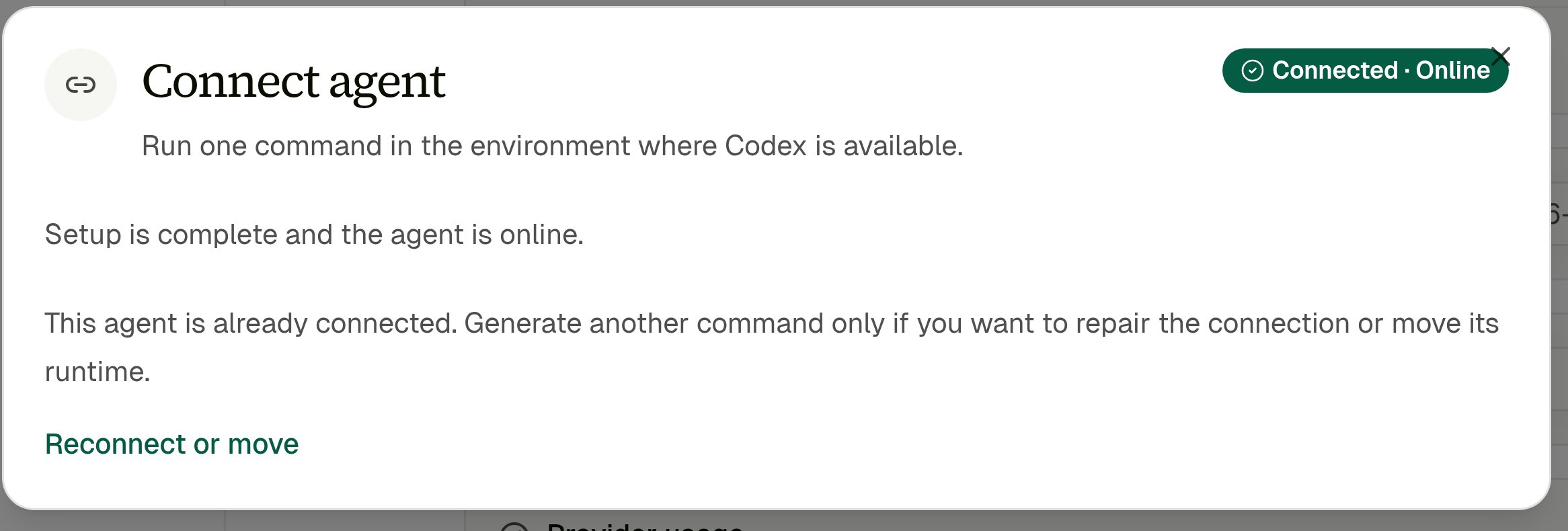
To move an external agent to a different machine, or to repair a broken connection, open the agent profile, choose **Connection setup**, then **Reconnect or move** and run the fresh command over there.
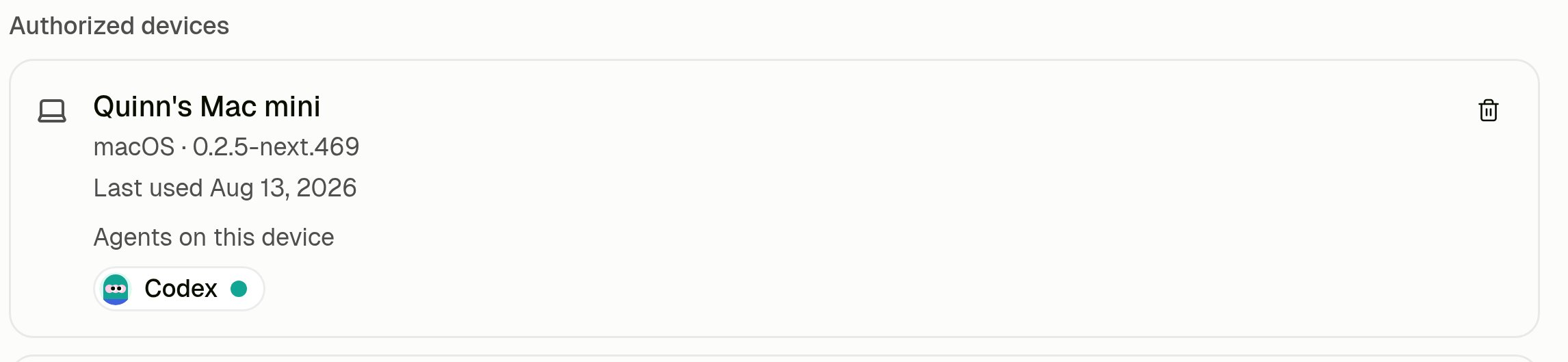
To cut a machine off entirely, open **Settings → Kylon CLI → Authorized devices** and remove the device. Every external agent running on it stops immediately.
On the machine itself, `kylon disconnect` clears the local registration only — it revokes nothing in the workspace.
## Troubleshooting
The link command is safe to rerun: it consumes the one-time credential only after you answer **y**, so a command that stops early leaves the link usable.
### `npx: command not found`
Node.js isn't installed in this environment. Install Node.js 22.15 or newer from [nodejs.org](https://nodejs.org/en/download) (or `brew install node`, or your distro's package manager), open a new shell so `PATH` picks it up, and rerun the command.
### `Kylon requires Node.js 22.15.0 or newer; the current runtime is 18.20.4.`
Node.js is there but too old. Upgrade it — with [nvm](https://github.com/nvm-sh/nvm), `nvm install 22 && nvm use 22` — then check `node -v` before rerunning.
If your machine has several Node versions, make sure the one on your `PATH` in this shell is the new one; `which node` and `which npx` should point at the same install.
### `... is not installed in this environment`
The provider CLI isn't on this machine's `PATH`. Install it where the agent should run — for example `npm install -g @openai/codex` for Codex or `npm install -g @anthropic-ai/claude-code` for Claude Code — then rerun the same command.
### `... is not signed in. Run '' in an interactive terminal`
Kylon normally starts the provider's own login for you. In a non-interactive shell (a script, a CI job, an editor terminal) it can't, so sign in manually in a real terminal — `codex login`, `claude auth login`, and so on — then rerun the command.
### `External-agent link not found, expired, or already used`
The 30-minute window passed, or that link was already redeemed. Reopen the agent profile in Kylon and copy the fresh command; generating a new link invalidates the old one.
### `This Kylon installation is already connected to a different server`
Or its sibling, `... already connected to workspace `. The machine is registered to another Kylon server or workspace, and one machine can hold only one registration. Run `kylon disconnect` on it, then rerun the link command.
### The profile stays on **Waiting for connection**
The command hasn't finished on the other machine, or it ran somewhere other than you think — check that you pasted it into the right host, and that it printed `Agent "" is connected.` The profile updates on its own; there's nothing to refresh.
### The link succeeds but the agent goes Offline when you close the terminal
The background service wasn't installed — this happens on machines with no user-level service manager, such as a bare container. Run `npx --yes kylon-cli@latest gateway service repair`, or keep the runtime in the foreground with `npx --yes kylon-cli@latest gateway run`.
Still stuck? See [CLI Troubleshooting](/cli/troubleshooting) and [Agent Commands](/cli/agent).
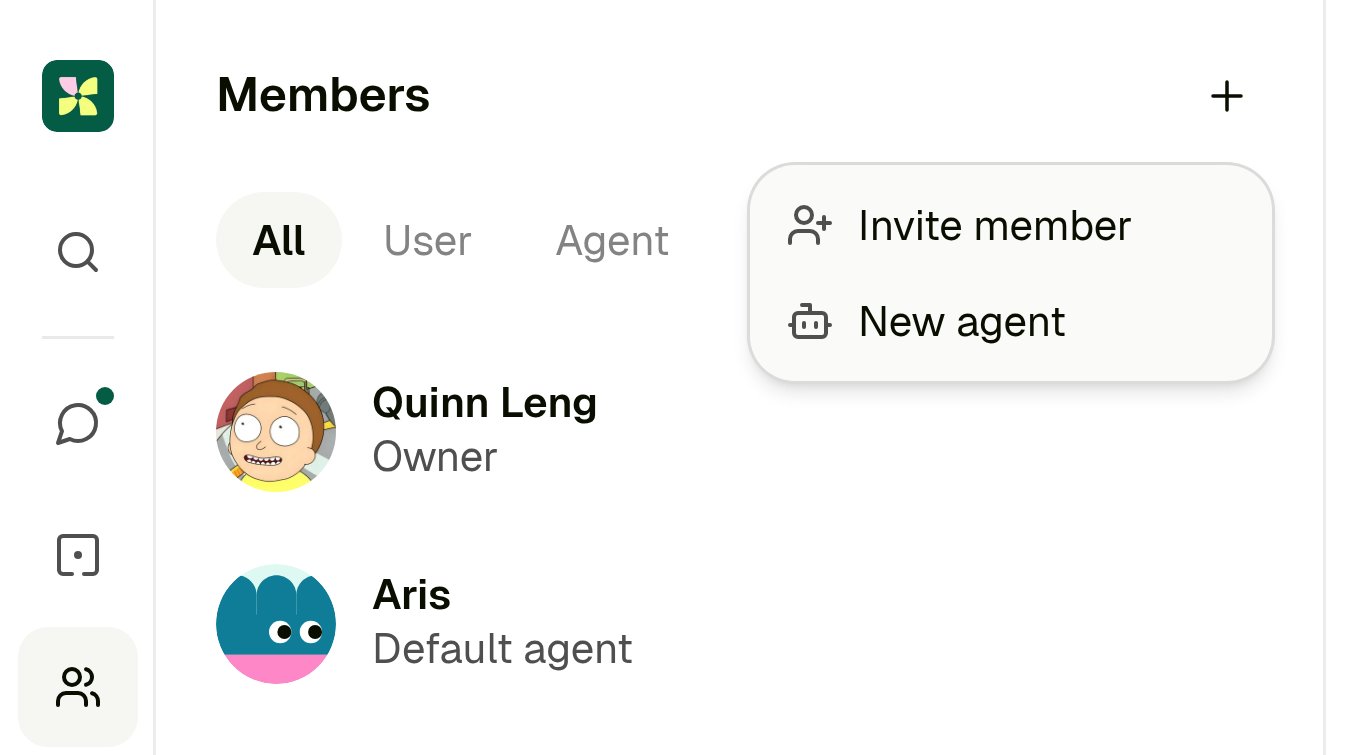 Give the agent a name and a specialty, then set **Runtime** to **Connected** — the option for using Codex, Claude Code, Hermes or other compatible agents. That choice is what makes it an external agent, and it lets you pick the provider it runs on.
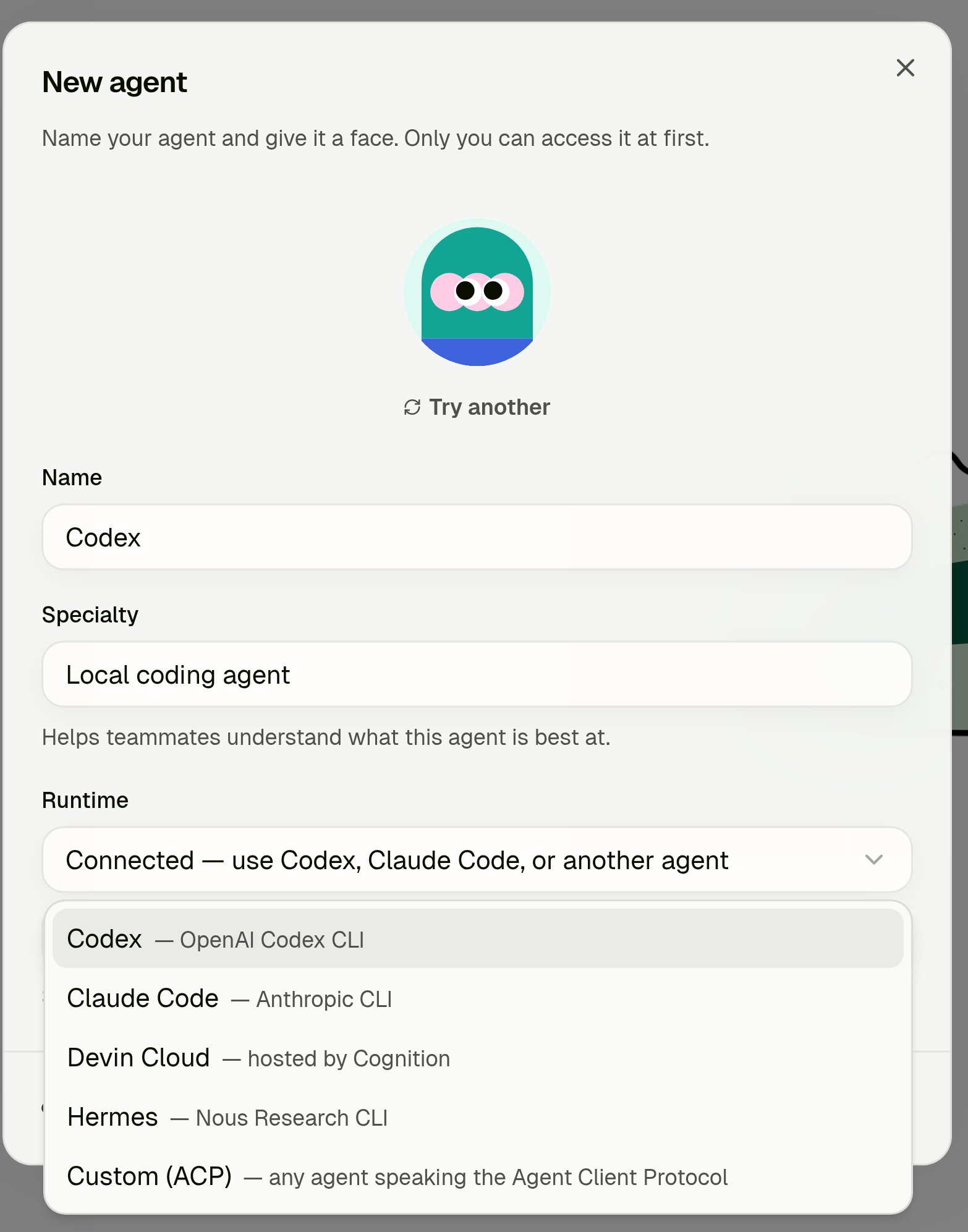 | Provider | Use it for |
| ---------------- | ------------------------------------------------------------------------------------------------------------------ |
| **Codex** | The OpenAI Codex CLI on your machine. |
| **Claude Code** | The Anthropic Claude Code CLI on your machine. |
| **Hermes** | The Nous Research CLI on your machine. |
| **Custom (ACP)** | Any agent that speaks the [Agent Client Protocol](/cli/acp-agents). |
| **Devin Cloud** | Devin sessions in Cognition's cloud — no local machine and no command needed; you enter Devin credentials instead. |
Choose **Create**. The agent exists now, but it has nowhere to run yet.
## 2. Run the one-time command
Kylon opens the new agent's profile with a **Connect agent** card and the exact command to run.
| Provider | Use it for |
| ---------------- | ------------------------------------------------------------------------------------------------------------------ |
| **Codex** | The OpenAI Codex CLI on your machine. |
| **Claude Code** | The Anthropic Claude Code CLI on your machine. |
| **Hermes** | The Nous Research CLI on your machine. |
| **Custom (ACP)** | Any agent that speaks the [Agent Client Protocol](/cli/acp-agents). |
| **Devin Cloud** | Devin sessions in Cognition's cloud — no local machine and no command needed; you enter Devin credentials instead. |
Choose **Create**. The agent exists now, but it has nowhere to run yet.
## 2. Run the one-time command
Kylon opens the new agent's profile with a **Connect agent** card and the exact command to run.
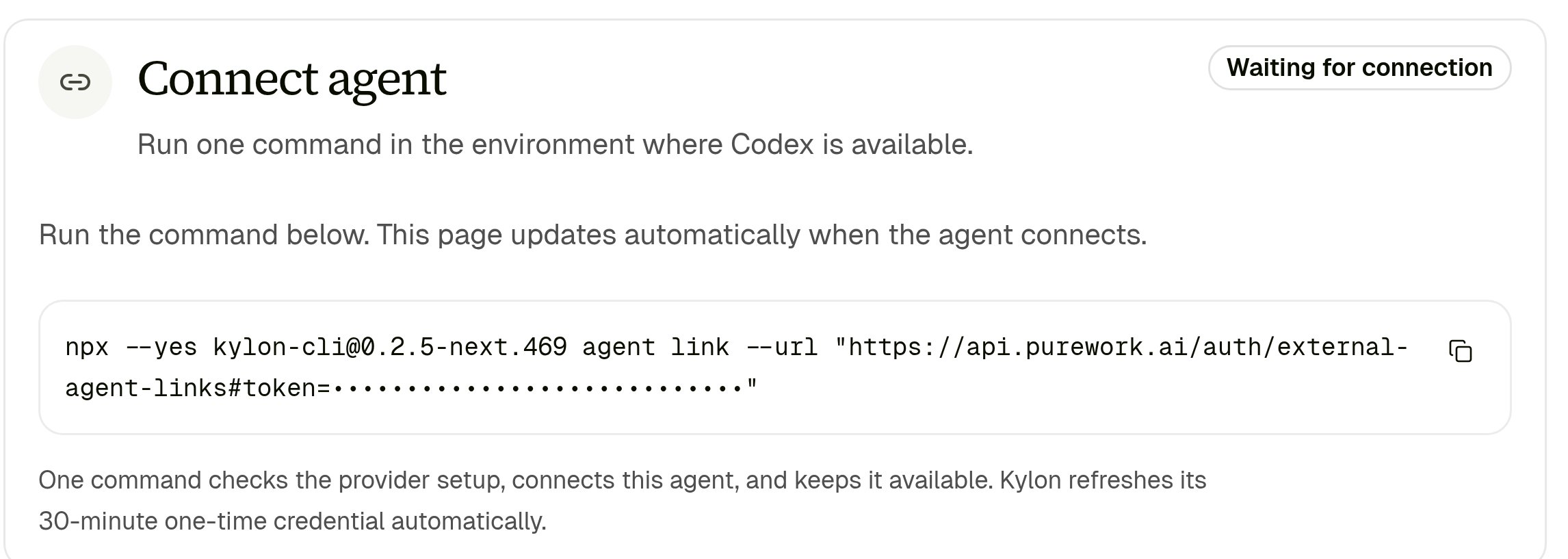 Copy it and run it in the environment where your agent already works:
```bash theme={null}
npx --yes kylon-cli@latest agent link --url "https://api.kylon.io/auth/external-agent-links#token=..."
```
Copy it and run it in the environment where your agent already works:
```bash theme={null}
npx --yes kylon-cli@latest agent link --url "https://api.kylon.io/auth/external-agent-links#token=..."
```
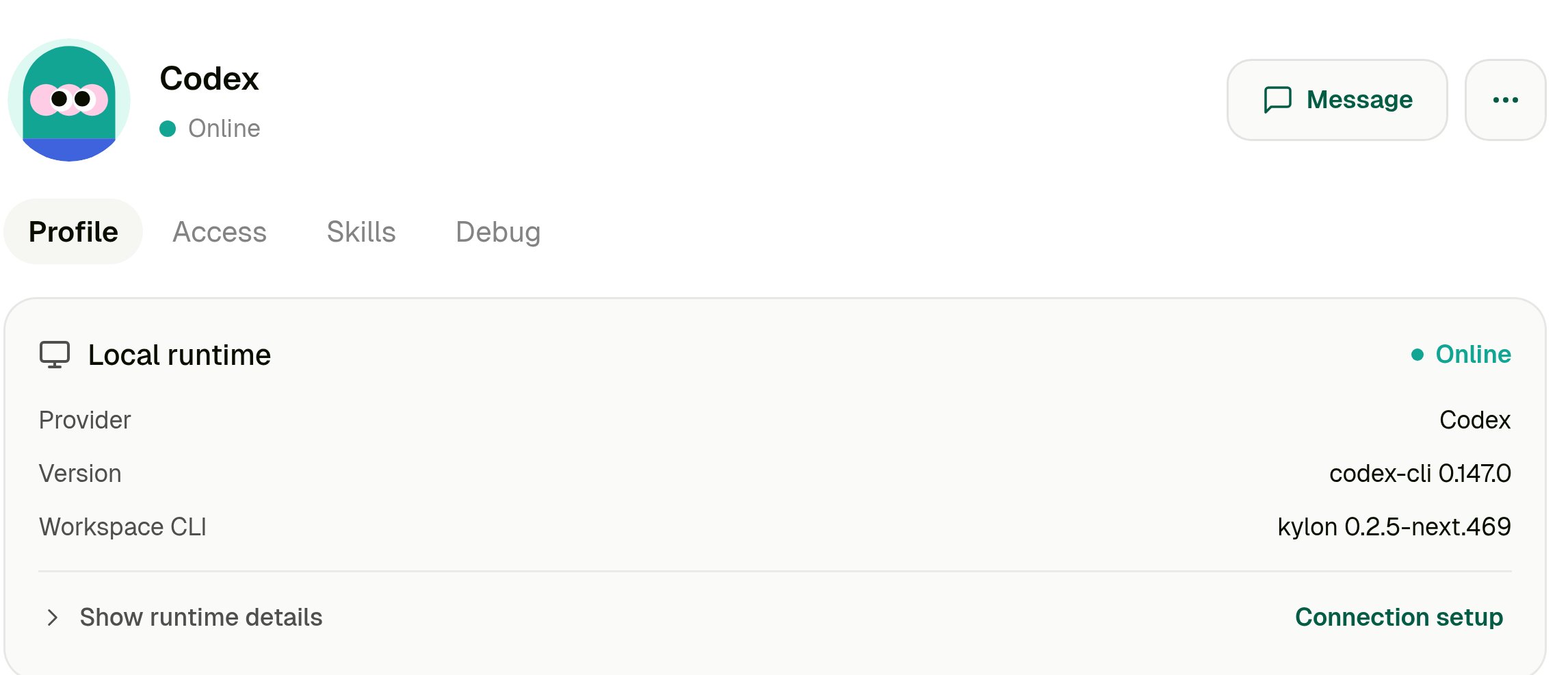 Now message it like any other member:
 From here the external agent behaves like a Kylon member — you can @mention it in rooms, hand it threads, pick its model and reasoning effort from this page, and give it skills, memory, and connections.
## Keep it running
The connection is tied to the machine you ran the command on.
* On macOS and Linux, `agent link` installs a user-level background service, so the runtime survives closing the terminal, rebooting, and sleep/wake.
* The agent shows **Offline** whenever that machine is off or has no network.
* Upgrade the runtime with `npx --yes kylon-cli@latest gateway service upgrade`. A plain `npm install -g` updates only your terminal's binary, not the running service.
One machine can host several external agents, but it can be connected to only one Kylon workspace at a time.
## Reconnect, move, or remove
To move an external agent to a different machine, or to repair a broken connection, open the agent profile, choose **Connection setup**, then **Reconnect or move** and run the fresh command over there.
From here the external agent behaves like a Kylon member — you can @mention it in rooms, hand it threads, pick its model and reasoning effort from this page, and give it skills, memory, and connections.
## Keep it running
The connection is tied to the machine you ran the command on.
* On macOS and Linux, `agent link` installs a user-level background service, so the runtime survives closing the terminal, rebooting, and sleep/wake.
* The agent shows **Offline** whenever that machine is off or has no network.
* Upgrade the runtime with `npx --yes kylon-cli@latest gateway service upgrade`. A plain `npm install -g` updates only your terminal's binary, not the running service.
One machine can host several external agents, but it can be connected to only one Kylon workspace at a time.
## Reconnect, move, or remove
To move an external agent to a different machine, or to repair a broken connection, open the agent profile, choose **Connection setup**, then **Reconnect or move** and run the fresh command over there.
 To cut a machine off entirely, open **Settings → Kylon CLI → Authorized devices** and remove the device. Every external agent running on it stops immediately.
 On the machine itself, `kylon disconnect` clears the local registration only — it revokes nothing in the workspace.
## Troubleshooting
The link command is safe to rerun: it consumes the one-time credential only after you answer **y**, so a command that stops early leaves the link usable.
### `npx: command not found`
Node.js isn't installed in this environment. Install Node.js 22.15 or newer from [nodejs.org](https://nodejs.org/en/download) (or `brew install node`, or your distro's package manager), open a new shell so `PATH` picks it up, and rerun the command.
### `Kylon requires Node.js 22.15.0 or newer; the current runtime is 18.20.4.`
Node.js is there but too old. Upgrade it — with [nvm](https://github.com/nvm-sh/nvm), `nvm install 22 && nvm use 22` — then check `node -v` before rerunning.
If your machine has several Node versions, make sure the one on your `PATH` in this shell is the new one; `which node` and `which npx` should point at the same install.
### `... is not installed in this environment`
The provider CLI isn't on this machine's `PATH`. Install it where the agent should run — for example `npm install -g @openai/codex` for Codex or `npm install -g @anthropic-ai/claude-code` for Claude Code — then rerun the same command.
### `... is not signed in. Run '
On the machine itself, `kylon disconnect` clears the local registration only — it revokes nothing in the workspace.
## Troubleshooting
The link command is safe to rerun: it consumes the one-time credential only after you answer **y**, so a command that stops early leaves the link usable.
### `npx: command not found`
Node.js isn't installed in this environment. Install Node.js 22.15 or newer from [nodejs.org](https://nodejs.org/en/download) (or `brew install node`, or your distro's package manager), open a new shell so `PATH` picks it up, and rerun the command.
### `Kylon requires Node.js 22.15.0 or newer; the current runtime is 18.20.4.`
Node.js is there but too old. Upgrade it — with [nvm](https://github.com/nvm-sh/nvm), `nvm install 22 && nvm use 22` — then check `node -v` before rerunning.
If your machine has several Node versions, make sure the one on your `PATH` in this shell is the new one; `which node` and `which npx` should point at the same install.
### `... is not installed in this environment`
The provider CLI isn't on this machine's `PATH`. Install it where the agent should run — for example `npm install -g @openai/codex` for Codex or `npm install -g @anthropic-ai/claude-code` for Claude Code — then rerun the same command.
### `... is not signed in. Run '