> ## Documentation Index
> Fetch the complete documentation index at: https://docs.kylon.io/llms.txt
> Use this file to discover all available pages before exploring further.
# Connect a LINE Official Account
> Set up a LINE Messaging API channel so Kylon can receive new LINE messages through a verified webhook.
Kylon connects to LINE through a bring-your-own LINE Official Account. You provide the channel's **Channel Secret** so Kylon can verify incoming webhooks. You can also provide a **Channel Access Token** if you want Kylon to register the webhook URL in LINE automatically and use LINE Messaging API features such as media downloads.
Use this guide when you are setting up the `LINE Official Account` connection from an agent's Connections page.
Kylon receives new webhook events after the connection is configured. LINE does not provide a general API for Kylon to backfill old chat history from before the webhook was enabled.
## Before you start
You need:
* Admin access to a LINE Official Account.
* Access to the matching Messaging API channel in the [LINE Developers Console](https://developers.line.biz/console/).
* A Kylon workspace channel where inbound LINE messages should be routed.
LINE's own setup flow starts from a LINE Official Account. Per LINE's [Messaging API getting started guide](https://developers.line.biz/en/docs/messaging-api/getting-started/), enabling the Messaging API for the official account creates the Messaging API channel.
## Use an existing LINE Official Account
If your workspace already has a LINE Official Account, start here.
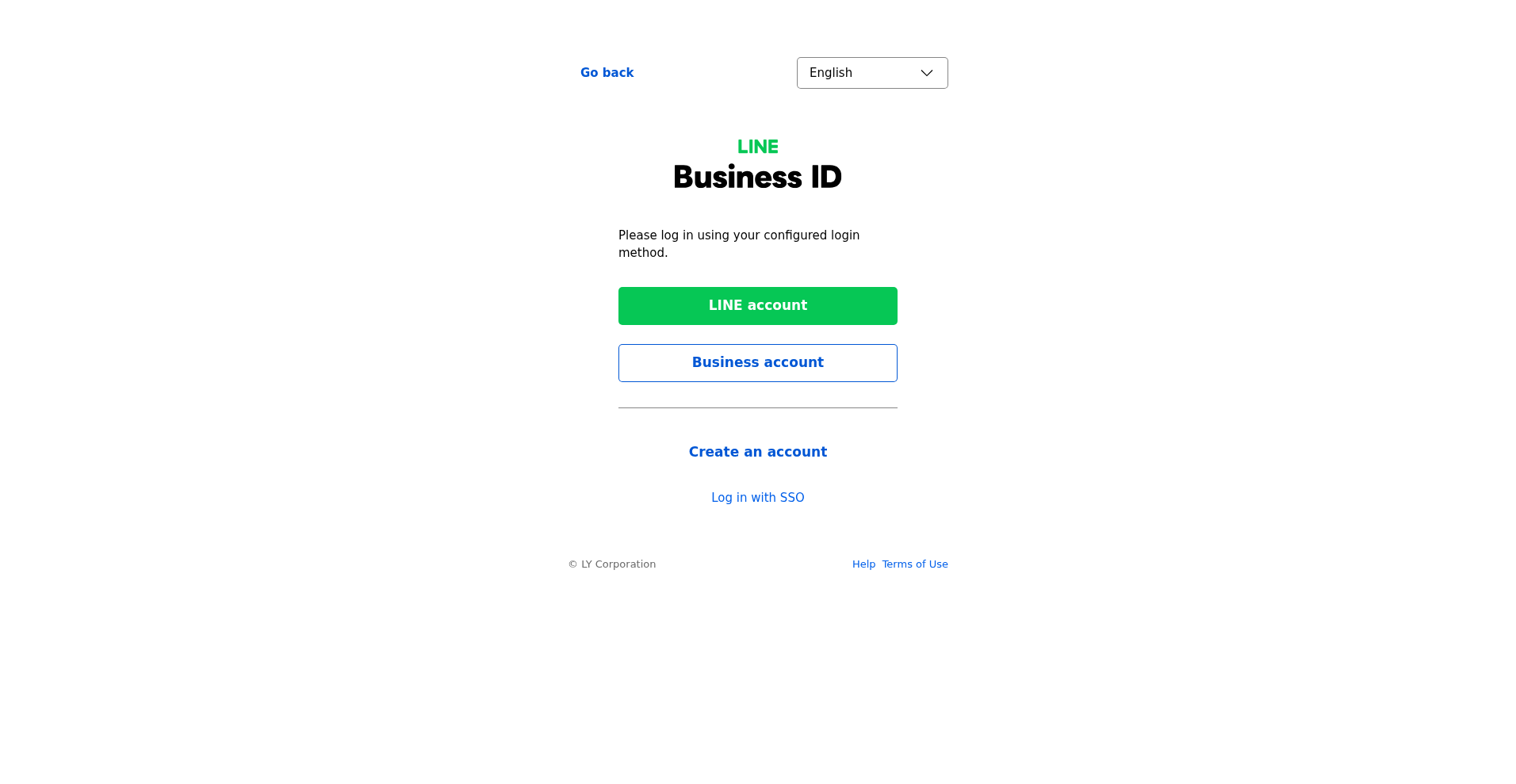
Sign in to [LINE Business ID](https://account.line.biz/login) and open the official account you want Kylon to receive messages from.
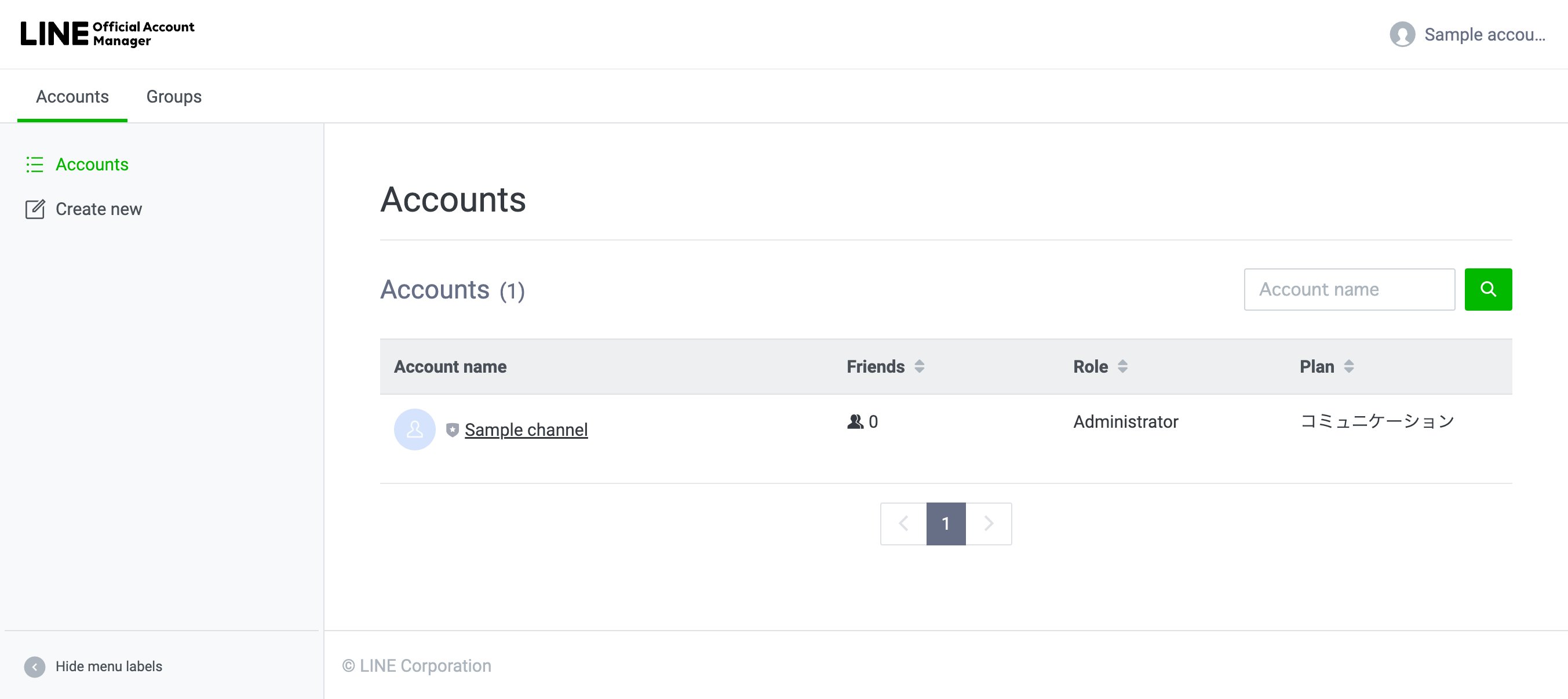
 In LINE Official Account Manager, make sure you are working on the correct account.
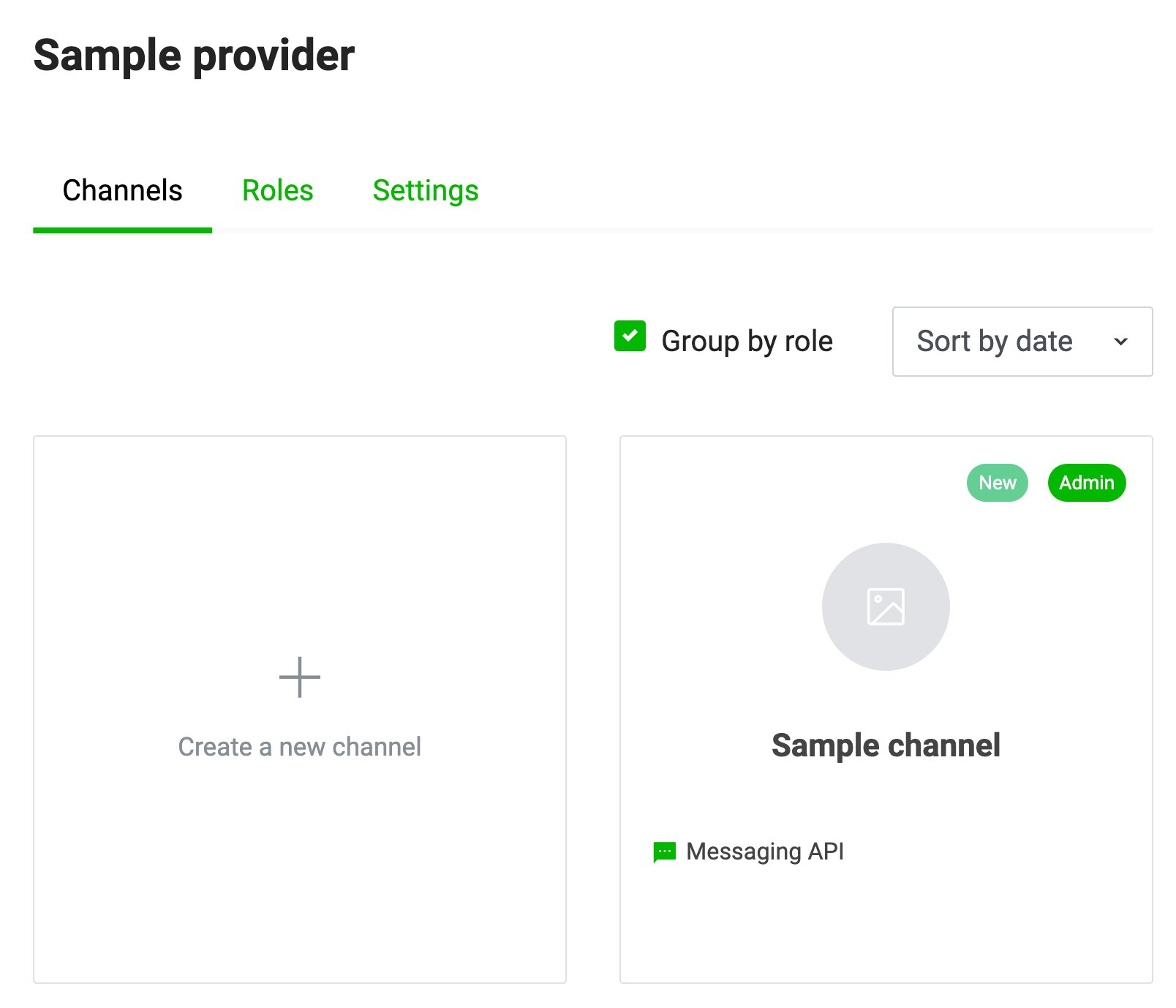
 If the Messaging API is not enabled for the account yet, enable it from LINE Official Account Manager. Then open the matching channel in the LINE Developers Console.
 ## Create a LINE Official Account
Skip this section if you already have the official account.
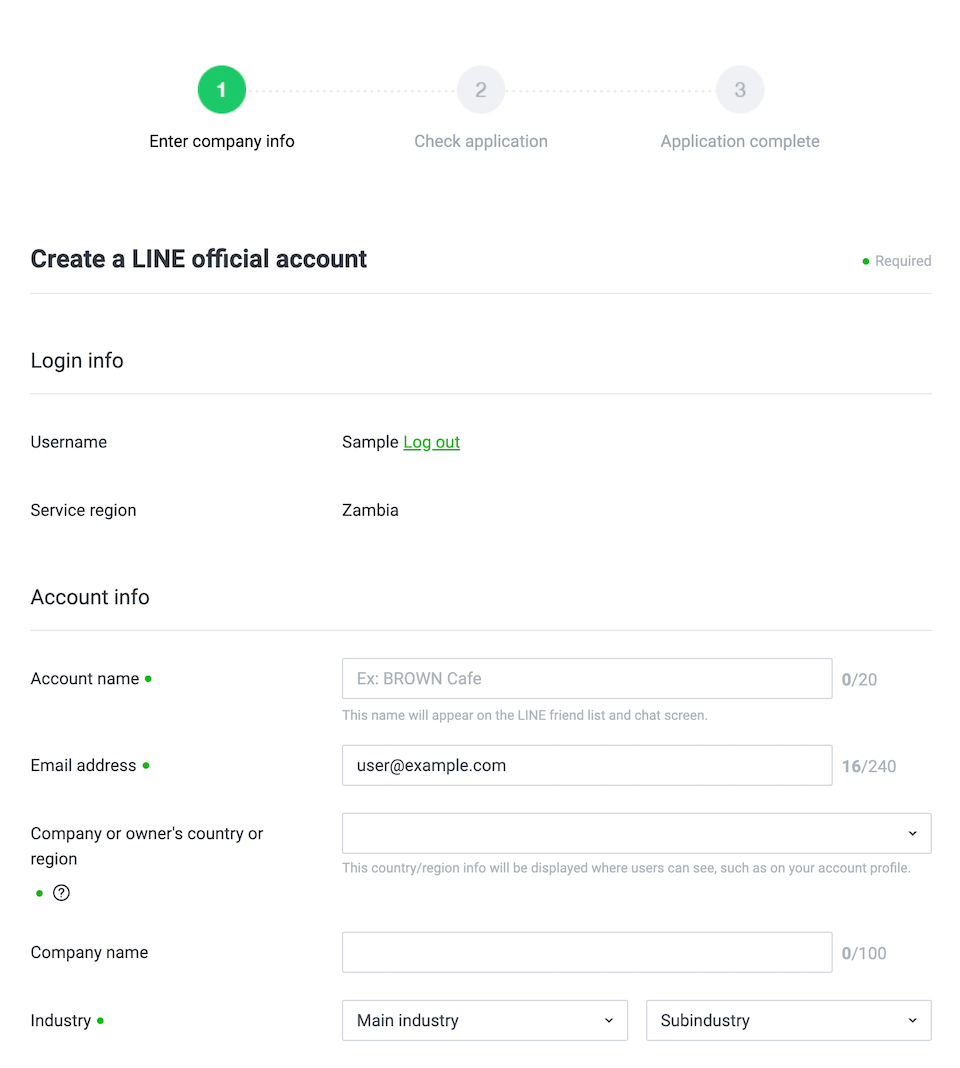
In LINE Official Account Manager, choose **Create new** and complete LINE's required account form.
## Create a LINE Official Account
Skip this section if you already have the official account.
In LINE Official Account Manager, choose **Create new** and complete LINE's required account form.
 After the account is created, enable the Messaging API for it. LINE will create the corresponding Messaging API channel in the LINE Developers Console.
## Create the Kylon connection
In Kylon, open the target agent, go to **Connections**, choose **LINE Official Account**, and enter:
| Kylon field | LINE location | Notes |
| -------------------- | ------------------------------------------------------------------------------------------------------------------------ | --------------------------------------------------------------------------------------------------------------------------------------------------------------------------------------------------------------------------------------------------------------------------------------------------- |
| Label | Your choice | Use a label such as `Support LINE` or the official account name. |
| Target channel | Kylon workspace channel | New LINE webhook messages are routed to this channel. |
| Channel Secret | LINE Official Account Manager, **Settings** > **Messaging API**, or LINE Developers Console, channel, **Basic settings** | Required. LINE uses this secret to sign webhook requests. Kylon verifies the `x-line-signature` header using HMAC-SHA256, matching LINE's [webhook signature verification](https://developers.line.biz/en/docs/messaging-api/verify-webhook-signature/) docs. |
| Channel Access Token | LINE Developers Console, channel, **Messaging API** | Optional. This token authorizes Messaging API calls. Provide it if you want Kylon to register the webhook automatically and use LINE-hosted media APIs. LINE describes channel access tokens in the [channel access token guide](https://developers.line.biz/en/docs/basics/channel-access-token/). |
Do not paste the numeric Channel ID into either credential field.
The Channel Secret, Channel ID, and Channel Access Token are different values. A Channel Secret is commonly a 32-character value from Basic settings. A Channel ID is numeric. A Channel Access Token is an opaque token from the Messaging API tab and is usually much longer.
The Channel Access Token is not shown in LINE Official Account Manager. From the official account's **Messaging API** settings, open the linked LINE Developers Console, select the same Messaging API channel by matching the Channel ID, then use the **Messaging API** tab to issue or copy a Channel Access Token.
After you submit the Kylon form, Kylon returns a webhook URL. If you did not provide a Channel Access Token, copy the webhook URL before closing the dialog.
## Configure the LINE webhook
If you provided a Channel Access Token and Kylon reports that the LINE webhook was registered successfully, no manual URL paste is needed. In the LINE Developers Console, open the same Messaging API channel, go to the **Messaging API** tab, and confirm **Use webhook** is enabled.
If you left the Channel Access Token blank, configure the webhook manually:
In **Webhook settings**, edit **Webhook URL**, paste the Kylon URL, and save it.
After the account is created, enable the Messaging API for it. LINE will create the corresponding Messaging API channel in the LINE Developers Console.
## Create the Kylon connection
In Kylon, open the target agent, go to **Connections**, choose **LINE Official Account**, and enter:
| Kylon field | LINE location | Notes |
| -------------------- | ------------------------------------------------------------------------------------------------------------------------ | --------------------------------------------------------------------------------------------------------------------------------------------------------------------------------------------------------------------------------------------------------------------------------------------------- |
| Label | Your choice | Use a label such as `Support LINE` or the official account name. |
| Target channel | Kylon workspace channel | New LINE webhook messages are routed to this channel. |
| Channel Secret | LINE Official Account Manager, **Settings** > **Messaging API**, or LINE Developers Console, channel, **Basic settings** | Required. LINE uses this secret to sign webhook requests. Kylon verifies the `x-line-signature` header using HMAC-SHA256, matching LINE's [webhook signature verification](https://developers.line.biz/en/docs/messaging-api/verify-webhook-signature/) docs. |
| Channel Access Token | LINE Developers Console, channel, **Messaging API** | Optional. This token authorizes Messaging API calls. Provide it if you want Kylon to register the webhook automatically and use LINE-hosted media APIs. LINE describes channel access tokens in the [channel access token guide](https://developers.line.biz/en/docs/basics/channel-access-token/). |
Do not paste the numeric Channel ID into either credential field.
The Channel Secret, Channel ID, and Channel Access Token are different values. A Channel Secret is commonly a 32-character value from Basic settings. A Channel ID is numeric. A Channel Access Token is an opaque token from the Messaging API tab and is usually much longer.
The Channel Access Token is not shown in LINE Official Account Manager. From the official account's **Messaging API** settings, open the linked LINE Developers Console, select the same Messaging API channel by matching the Channel ID, then use the **Messaging API** tab to issue or copy a Channel Access Token.
After you submit the Kylon form, Kylon returns a webhook URL. If you did not provide a Channel Access Token, copy the webhook URL before closing the dialog.
## Configure the LINE webhook
If you provided a Channel Access Token and Kylon reports that the LINE webhook was registered successfully, no manual URL paste is needed. In the LINE Developers Console, open the same Messaging API channel, go to the **Messaging API** tab, and confirm **Use webhook** is enabled.
If you left the Channel Access Token blank, configure the webhook manually:
In **Webhook settings**, edit **Webhook URL**, paste the Kylon URL, and save it.
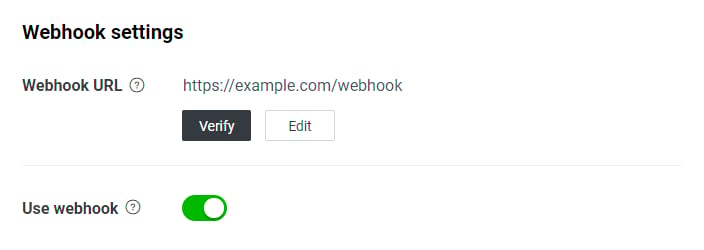 Click **Verify**. LINE's [webhook URL verification](https://developers.line.biz/en/docs/messaging-api/verify-webhook-url/) sends a request with an empty `events` array. Kylon treats that signed empty-events request as a successful verification request.
Enable **Use webhook**. LINE's [bot setup guide](https://developers.line.biz/en/docs/messaging-api/building-bot/) requires the webhook URL to use HTTPS, verifies the endpoint, and then enables webhook delivery.
## Recommended response settings
If Kylon should be the system handling incoming messages:
* Turn off LINE's automatic reply features in LINE Official Account Manager.
* Keep webhook delivery on in the LINE Developers Console.
* If the bot needs to operate in group or multi-person chats, enable **Allow bot to join group chats** in the LINE Developers Console's Messaging API tab before inviting the account to the group. LINE's [group chat documentation](https://developers.line.biz/en/docs/messaging-api/group-chats/) notes that this setting is disabled by default.
## What Kylon can receive
Kylon receives webhook events that LINE sends after the webhook is configured and enabled.
Kylon does not receive:
* Messages sent before the webhook was enabled.
* Historical LINE chat history through a backfill API.
* Manual reply activity that happens only inside LINE Official Account Manager.
For provider-level event shapes and Messaging API behavior, refer to LINE's [Messaging API reference](https://developers.line.biz/en/reference/messaging-api/).
## Troubleshooting
| Symptom | Check |
| --------------------------------------------------------------------------- | ---------------------------------------------------------------------------------------------------------------------------------------------------------------------------------------------------------- |
| Kylon rejects setup with "Channel Secret looks like a Channel ID" | You pasted the numeric Channel ID. Use the Channel Secret from **Basic settings**. |
| Kylon rejects setup with "Channel Access Token looks like a Channel ID" | You pasted the numeric Channel ID into the optional token field. Leave the token blank for manual webhook setup, or use the Channel Access Token from the LINE Developers Console's **Messaging API** tab. |
| Kylon rejects setup with "Channel Access Token looks like a Channel Secret" | You pasted the 32-character Channel Secret into the token field. Use a Channel Access Token from **Messaging API**. |
| You cannot find the Channel Access Token | You are probably viewing LINE Official Account Manager. Open the matching channel in the LINE Developers Console by using the Channel ID, then open the **Messaging API** tab. |
| LINE Verify fails | Confirm the webhook URL was saved exactly, **Use webhook** can be enabled, the Channel Secret in Kylon belongs to the same channel, and the channel secret was not reissued after setup. |
| Messages do not appear in Kylon | Confirm **Use webhook** is on, the user has followed or messaged the official account after setup, and the message was sent to the same official account/channel connected in Kylon. |
| The bot leaves a group after invitation | Enable **Allow bot to join group chats** in the LINE Developers Console's Messaging API tab, then invite the account again. |
| Auto-replies appear instead of Kylon handling the message | Disable LINE's auto-reply features for the official account if Kylon should be the message handler. |
Click **Verify**. LINE's [webhook URL verification](https://developers.line.biz/en/docs/messaging-api/verify-webhook-url/) sends a request with an empty `events` array. Kylon treats that signed empty-events request as a successful verification request.
Enable **Use webhook**. LINE's [bot setup guide](https://developers.line.biz/en/docs/messaging-api/building-bot/) requires the webhook URL to use HTTPS, verifies the endpoint, and then enables webhook delivery.
## Recommended response settings
If Kylon should be the system handling incoming messages:
* Turn off LINE's automatic reply features in LINE Official Account Manager.
* Keep webhook delivery on in the LINE Developers Console.
* If the bot needs to operate in group or multi-person chats, enable **Allow bot to join group chats** in the LINE Developers Console's Messaging API tab before inviting the account to the group. LINE's [group chat documentation](https://developers.line.biz/en/docs/messaging-api/group-chats/) notes that this setting is disabled by default.
## What Kylon can receive
Kylon receives webhook events that LINE sends after the webhook is configured and enabled.
Kylon does not receive:
* Messages sent before the webhook was enabled.
* Historical LINE chat history through a backfill API.
* Manual reply activity that happens only inside LINE Official Account Manager.
For provider-level event shapes and Messaging API behavior, refer to LINE's [Messaging API reference](https://developers.line.biz/en/reference/messaging-api/).
## Troubleshooting
| Symptom | Check |
| --------------------------------------------------------------------------- | ---------------------------------------------------------------------------------------------------------------------------------------------------------------------------------------------------------- |
| Kylon rejects setup with "Channel Secret looks like a Channel ID" | You pasted the numeric Channel ID. Use the Channel Secret from **Basic settings**. |
| Kylon rejects setup with "Channel Access Token looks like a Channel ID" | You pasted the numeric Channel ID into the optional token field. Leave the token blank for manual webhook setup, or use the Channel Access Token from the LINE Developers Console's **Messaging API** tab. |
| Kylon rejects setup with "Channel Access Token looks like a Channel Secret" | You pasted the 32-character Channel Secret into the token field. Use a Channel Access Token from **Messaging API**. |
| You cannot find the Channel Access Token | You are probably viewing LINE Official Account Manager. Open the matching channel in the LINE Developers Console by using the Channel ID, then open the **Messaging API** tab. |
| LINE Verify fails | Confirm the webhook URL was saved exactly, **Use webhook** can be enabled, the Channel Secret in Kylon belongs to the same channel, and the channel secret was not reissued after setup. |
| Messages do not appear in Kylon | Confirm **Use webhook** is on, the user has followed or messaged the official account after setup, and the message was sent to the same official account/channel connected in Kylon. |
| The bot leaves a group after invitation | Enable **Allow bot to join group chats** in the LINE Developers Console's Messaging API tab, then invite the account again. |
| Auto-replies appear instead of Kylon handling the message | Disable LINE's auto-reply features for the official account if Kylon should be the message handler. |