> ## Documentation Index
> Fetch the complete documentation index at: https://docs.kylon.io/llms.txt
> Use this file to discover all available pages before exploring further.
# Use your ChatGPT subscription
> Create a Codex Agent that runs on Kylon Cloud and signs in with your ChatGPT account, with no computer of your own to keep running.
**Codex on Kylon Cloud** is a Codex Agent that Kylon hosts for you and that signs in with your own ChatGPT account. Its Codex usage comes from your ChatGPT plan. Nothing is installed on your computer, and the Agent stays reachable when your laptop is closed.
| | Codex on Kylon Cloud | Codex on your computer |
| - | - | - |
| Where it runs | A cloud computer Kylon manages for this Agent | Your computer, through the Codex CLI |
| Setup | Sign in to ChatGPT with a device code | Paste a connection prompt into Codex and keep the computer online |
| Its files and sign-ins | Its own cloud environment; no access to your computer | Your computer's files, repositories, and Codex sign-in |
| Availability | Wakes up when it receives a message | Offline when the computer is off, asleep, or disconnected |
Choose [Codex on your computer](/agents/bring-your-own-agent) when the work needs a local repository checkout, a local toolchain, or credentials that should stay on that machine.
Codex on Kylon Cloud is enabled for each workspace separately. If **Codex on Kylon Cloud** is not in the **How it runs** list, it is not enabled for your workspace yet — ask the Kylon team to turn it on. Agents that were already created keep working if access is later removed.
## Before you start
* A ChatGPT account that can use Codex.
* **Device code login enabled for that ChatGPT account.** Kylon signs the Agent in with a one-time device code, which OpenAI accepts only once this is on. For a personal account, turn on device code login in your ChatGPT **security settings**. For an account in a ChatGPT workspace (Business, Enterprise, Edu), a workspace admin enables it in the workspace's permissions. See OpenAI's [device code authentication](https://learn.chatgpt.com/docs/auth?surface=cli#preferred-device-code-authentication-beta) guide.
* Permission to create Agents in the workspace.
The person who creates the Agent owns it, and it uses **that person's** ChatGPT account. Only the owner can sign it in, and ownership cannot be transferred to someone else later; a different person who wants to use their own account creates their own Agent.
## 1. Create the Agent
In **Members**, choose the **+** button (**Invite or create**), then **New agent**. Enter a name and specialty, open **How it runs**, and choose **Codex on Kylon Cloud**.
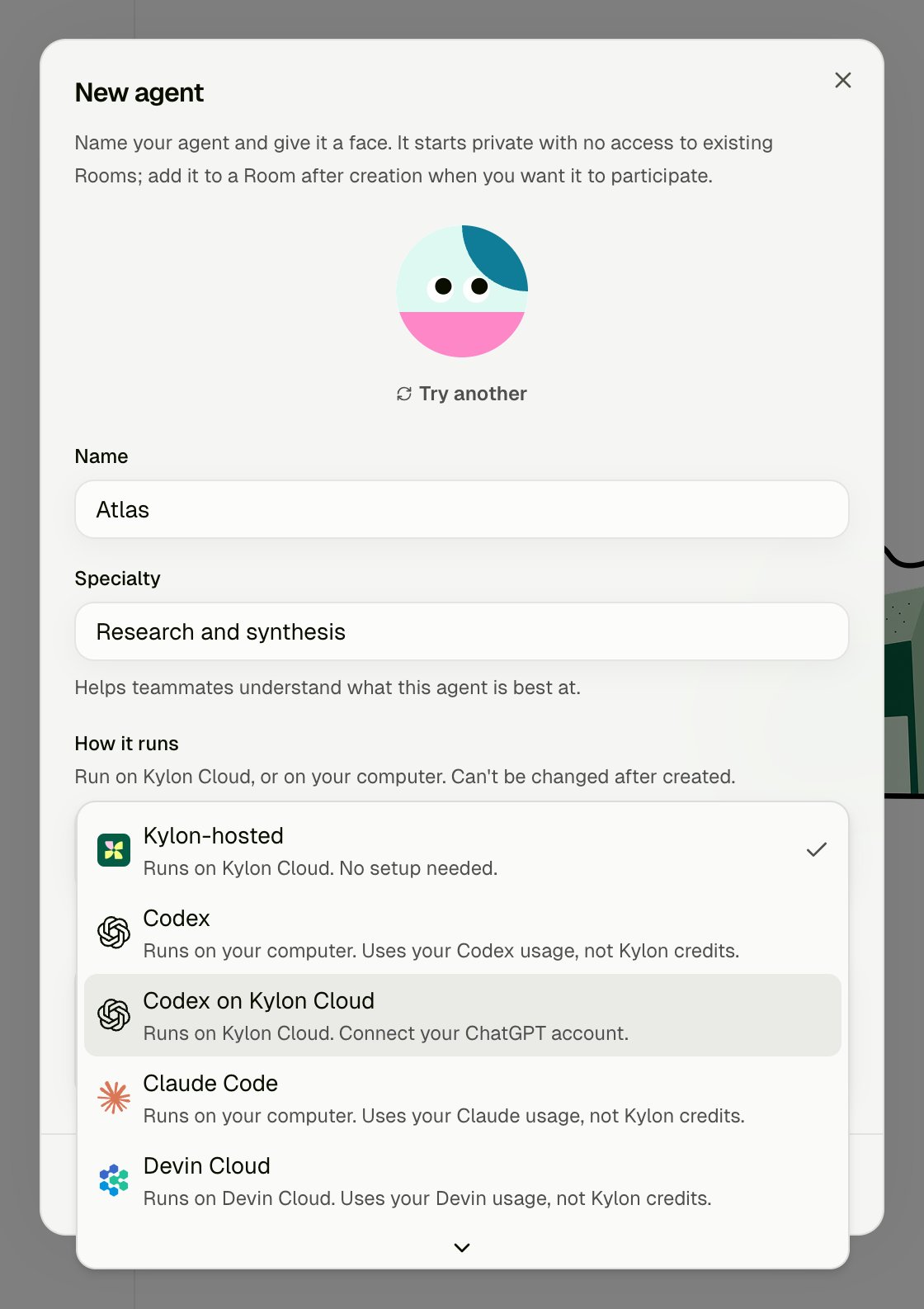 This choice is permanent — the Agent cannot be moved to your computer or to Kylon-hosted later. Choose **Create**.
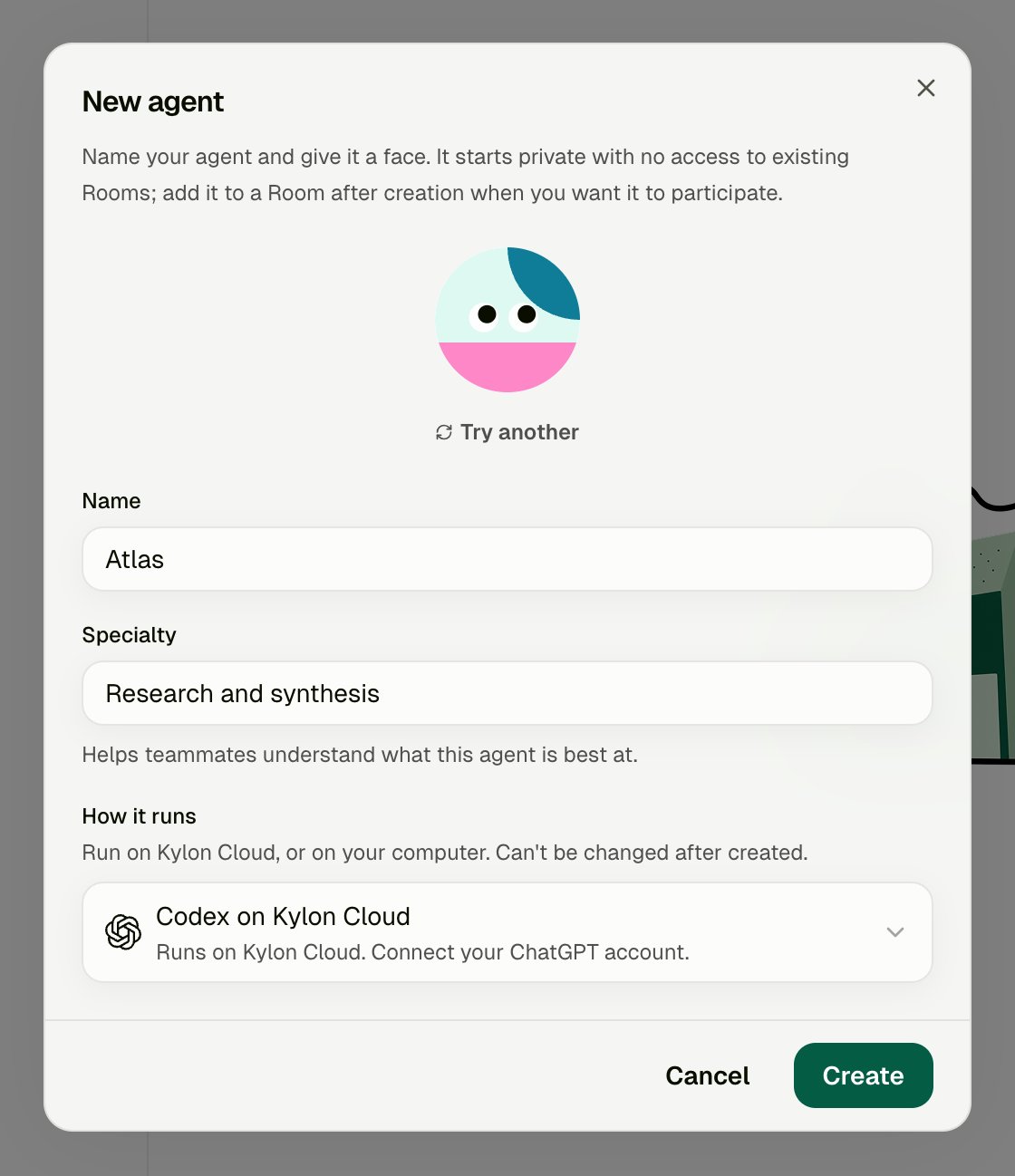 Unlike a computer-based provider there is no computer-access notice to accept: this Agent never touches your computer.
## 2. Wait for the cloud environment
Kylon opens the Agent's **Profile** and starts its cloud computer. This usually takes under a minute.
Unlike a computer-based provider there is no computer-access notice to accept: this Agent never touches your computer.
## 2. Wait for the cloud environment
Kylon opens the Agent's **Profile** and starts its cloud computer. This usually takes under a minute.
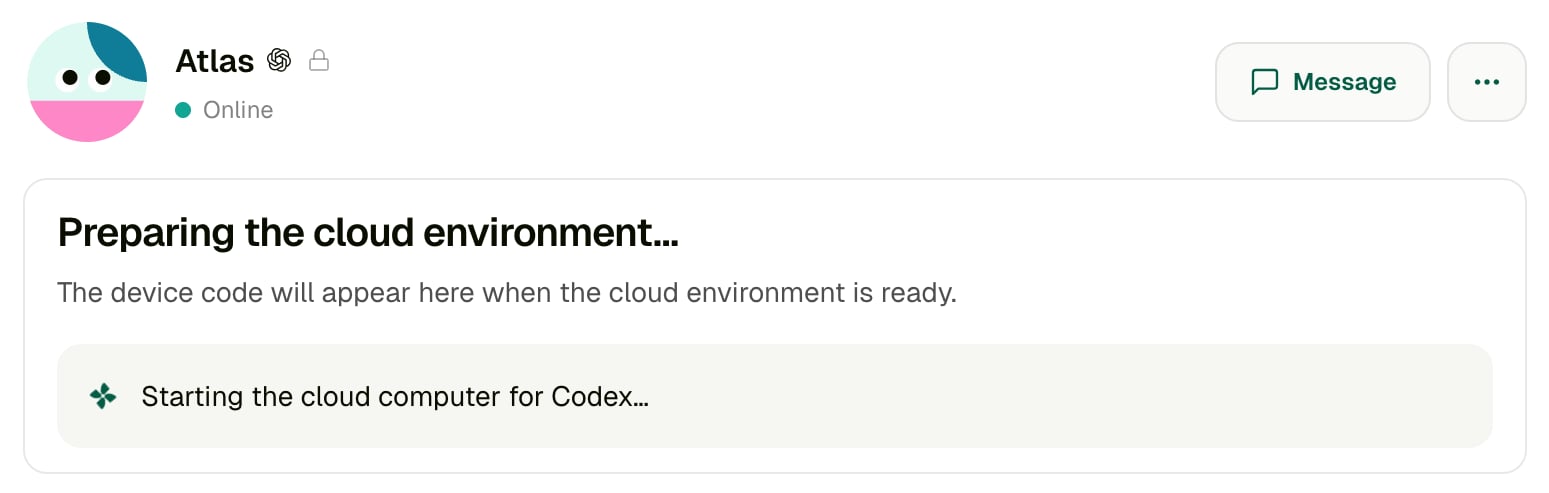 Keep the page open. The device code appears in the same card on its own.
## 3. Sign in with ChatGPT
When the environment is ready, the card changes to **Sign in with ChatGPT**.
Keep the page open. The device code appears in the same card on its own.
## 3. Sign in with ChatGPT
When the environment is ready, the card changes to **Sign in with ChatGPT**.
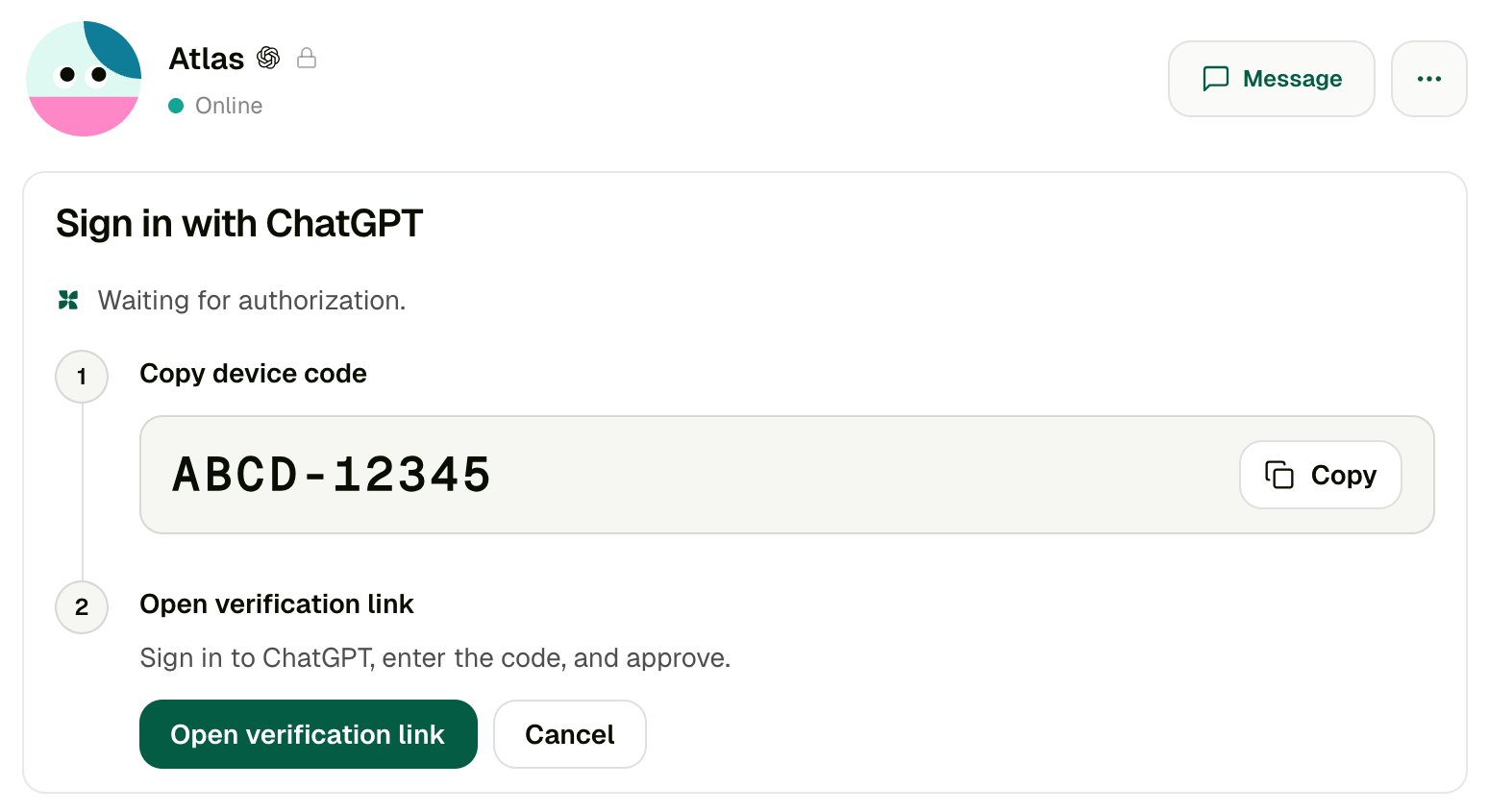 1. Choose **Copy** next to the device code.
2. Choose **Open verification link**. It opens `https://auth.openai.com/codex/device` in a new tab.
3. Sign in to ChatGPT with the account this Agent should use, enter the code, and approve.
The code in the image is an example. Always use the code shown in your own workspace, and do not share it — anyone who enters it can connect their account to your Agent.
If you leave the page for a while, the code refreshes on its own ("Refreshing the verification code…"); copy the new one. A sign-in attempt that is not completed within 30 minutes stops with **Login expired**.
## 4. Check the connection
Return to Kylon. The card shows **ChatGPT authorization complete** and **Connecting your agent…**, then **ChatGPT connected.** No further action is needed.
Send the Agent a message to check its first response. A new Agent starts private and is not in any Room; add it where it should work, and see [Agent access](/agents/access) for who can reach it.
Every message to this Agent runs on the owner's ChatGPT account and counts toward that plan's Codex usage — including messages from other people you give access to. Share the Agent only with people you are happy to spend that usage on.
## How it behaves day to day
* **It sleeps when idle.** After a few minutes with no work, its cloud computer pauses. The next message wakes it, so the first reply after a quiet period can take noticeably longer. Its profile keeps showing **Online** while it sleeps, because it is always ready to wake.
* **Long tasks keep it awake.** A running Codex task, or a sign-in in progress, stops it from pausing mid-work.
* **Its files live in its cloud environment.** It does not see your computer's files or repositories. Give it what it needs through the conversation, files, or its [connections](/concepts/connections).
## If ChatGPT asks you to sign in again
If the saved ChatGPT sign-in stops working, the Agent posts a notice in the conversation: **\ needs you to sign in again.** Its profile also shows **Sign-in required**.
The owner chooses **Sign in again** and repeats [step 3](#3-sign-in-with-chatgpt) with a new device code. Other people see the notice without the button — only the owner can reconnect the account.
After it reconnects, the notice changes to **\ is connected again.** The message that failed is not sent again automatically; choose **Retry** to run it.
## Stop using your ChatGPT account
There is no separate sign-out button. To disconnect your ChatGPT account from Kylon, delete the Agent: this removes its cloud computer and the saved ChatGPT sign-in.
## Troubleshooting
### Codex on Kylon Cloud is not in the list
It is not enabled for this workspace. Ask the Kylon team to turn it on for the workspace, then reopen **New agent**.
### ChatGPT says device code login is not enabled
This is an OpenAI setting on your ChatGPT account, separate from whether Kylon has enabled Codex on Kylon Cloud for your workspace. Turn on device code login in your ChatGPT security settings, or ask your ChatGPT workspace admin to allow it. Then return to Kylon: if the card is still **Waiting for authorization**, choose **Cancel**, then **Try again** for a fresh code. Retrying without changing the setting gives the same result.
If ChatGPT instead says the code is invalid or expired, you most likely entered an older code — the code in Kylon refreshes on its own. Copy the one shown now and enter it again.
### The sign-in says Login cancelled or Login expired
1. Choose **Copy** next to the device code.
2. Choose **Open verification link**. It opens `https://auth.openai.com/codex/device` in a new tab.
3. Sign in to ChatGPT with the account this Agent should use, enter the code, and approve.
The code in the image is an example. Always use the code shown in your own workspace, and do not share it — anyone who enters it can connect their account to your Agent.
If you leave the page for a while, the code refreshes on its own ("Refreshing the verification code…"); copy the new one. A sign-in attempt that is not completed within 30 minutes stops with **Login expired**.
## 4. Check the connection
Return to Kylon. The card shows **ChatGPT authorization complete** and **Connecting your agent…**, then **ChatGPT connected.** No further action is needed.
Send the Agent a message to check its first response. A new Agent starts private and is not in any Room; add it where it should work, and see [Agent access](/agents/access) for who can reach it.
Every message to this Agent runs on the owner's ChatGPT account and counts toward that plan's Codex usage — including messages from other people you give access to. Share the Agent only with people you are happy to spend that usage on.
## How it behaves day to day
* **It sleeps when idle.** After a few minutes with no work, its cloud computer pauses. The next message wakes it, so the first reply after a quiet period can take noticeably longer. Its profile keeps showing **Online** while it sleeps, because it is always ready to wake.
* **Long tasks keep it awake.** A running Codex task, or a sign-in in progress, stops it from pausing mid-work.
* **Its files live in its cloud environment.** It does not see your computer's files or repositories. Give it what it needs through the conversation, files, or its [connections](/concepts/connections).
## If ChatGPT asks you to sign in again
If the saved ChatGPT sign-in stops working, the Agent posts a notice in the conversation: **\ needs you to sign in again.** Its profile also shows **Sign-in required**.
The owner chooses **Sign in again** and repeats [step 3](#3-sign-in-with-chatgpt) with a new device code. Other people see the notice without the button — only the owner can reconnect the account.
After it reconnects, the notice changes to **\ is connected again.** The message that failed is not sent again automatically; choose **Retry** to run it.
## Stop using your ChatGPT account
There is no separate sign-out button. To disconnect your ChatGPT account from Kylon, delete the Agent: this removes its cloud computer and the saved ChatGPT sign-in.
## Troubleshooting
### Codex on Kylon Cloud is not in the list
It is not enabled for this workspace. Ask the Kylon team to turn it on for the workspace, then reopen **New agent**.
### ChatGPT says device code login is not enabled
This is an OpenAI setting on your ChatGPT account, separate from whether Kylon has enabled Codex on Kylon Cloud for your workspace. Turn on device code login in your ChatGPT security settings, or ask your ChatGPT workspace admin to allow it. Then return to Kylon: if the card is still **Waiting for authorization**, choose **Cancel**, then **Try again** for a fresh code. Retrying without changing the setting gives the same result.
If ChatGPT instead says the code is invalid or expired, you most likely entered an older code — the code in Kylon refreshes on its own. Copy the one shown now and enter it again.
### The sign-in says Login cancelled or Login expired
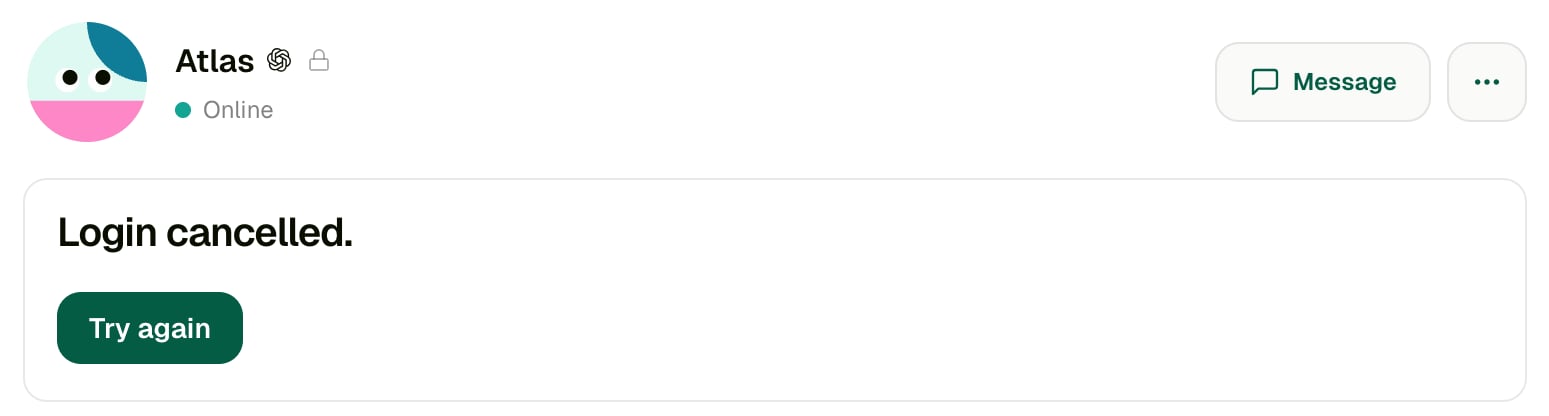 Choose **Try again** to get a new device code, then repeat [step 3](#3-sign-in-with-chatgpt). **Cancel** only stops the sign-in in progress; the Agent stays in the workspace.
### Setup failed
Choose **Try again**. If it keeps failing, contact the Kylon team with the Agent's name and the time you tried.
### Someone else cannot sign the Agent in
Only the owner can. If the owner is no longer available, create a new Codex on Kylon Cloud Agent owned by the person whose ChatGPT account should be used.
### The first reply is slow
The Agent was asleep and is waking its cloud computer. Later replies in the same session are faster.
Choose **Try again** to get a new device code, then repeat [step 3](#3-sign-in-with-chatgpt). **Cancel** only stops the sign-in in progress; the Agent stays in the workspace.
### Setup failed
Choose **Try again**. If it keeps failing, contact the Kylon team with the Agent's name and the time you tried.
### Someone else cannot sign the Agent in
Only the owner can. If the owner is no longer available, create a new Codex on Kylon Cloud Agent owned by the person whose ChatGPT account should be used.
### The first reply is slow
The Agent was asleep and is waking its cloud computer. Later replies in the same session are faster.