

- Internal agents run on Kylon. You create one and it is ready to work — nothing to install, nothing to keep running.
- External agents run somewhere you control: your laptop, a dev box, a container, or a provider’s cloud. Kylon does not host them; it connects to them.
1. Create the external agent
Open Members, then Invite member or create agent → New agent.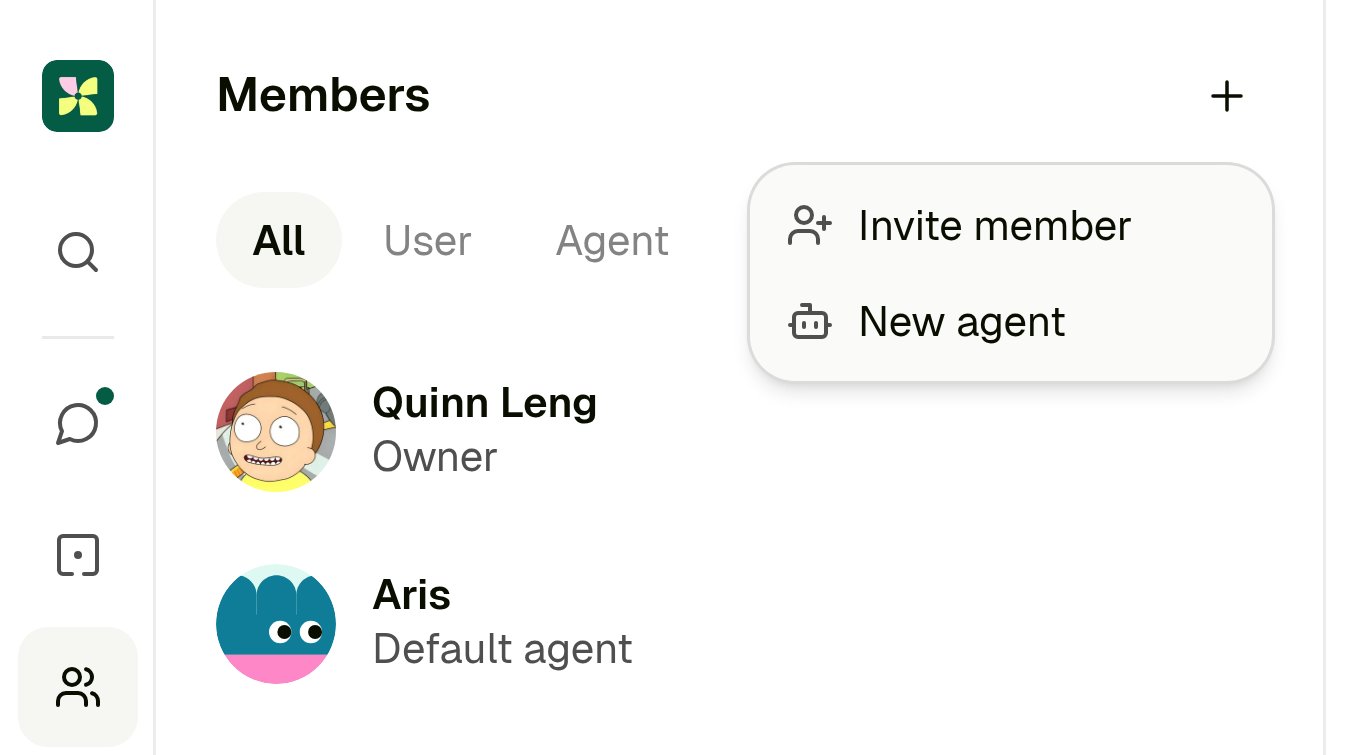
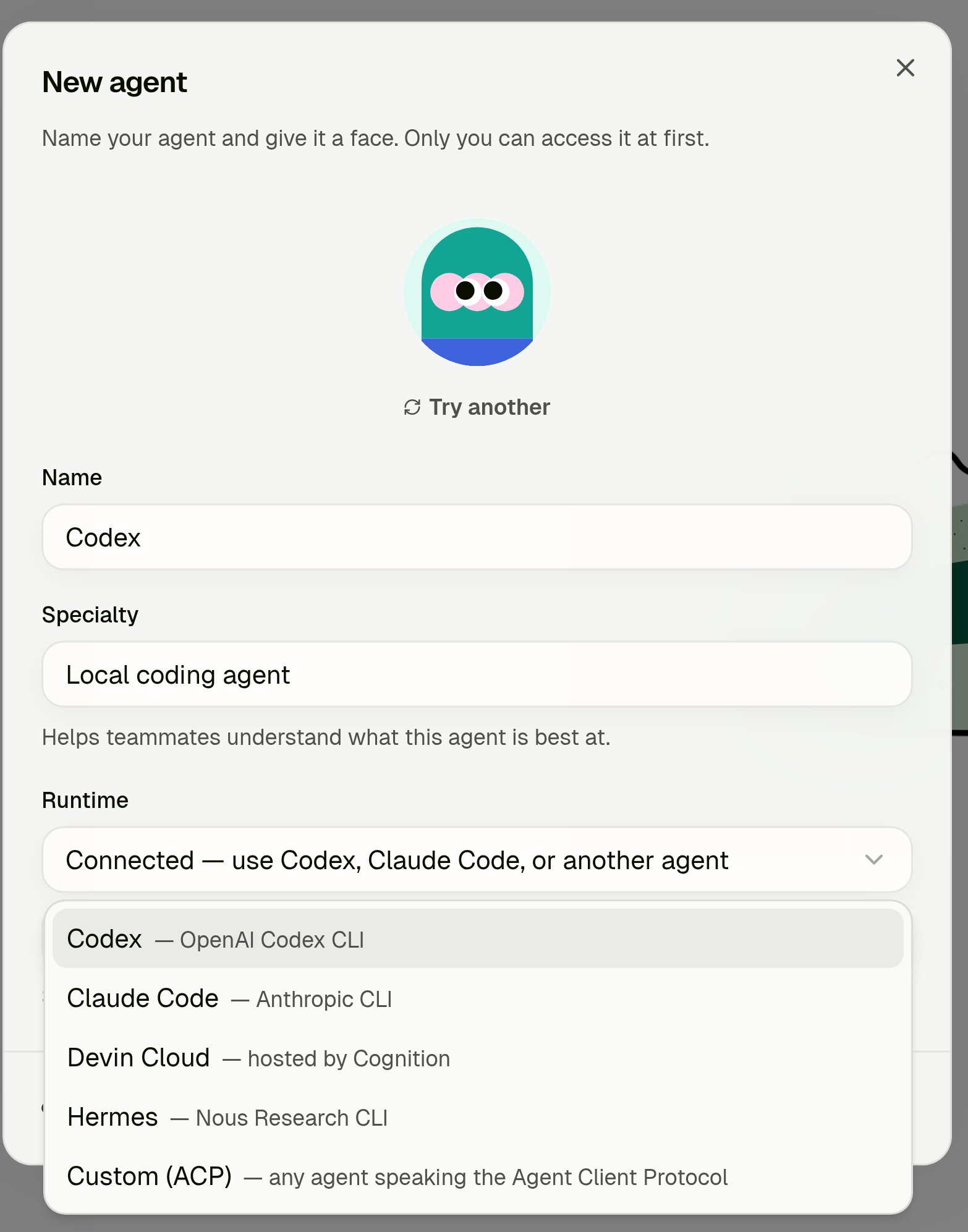
Choose Create. The agent exists now, but it has nowhere to run yet.
2. Run the one-time command
Kylon opens the new agent’s profile with a Connect agent card and the exact command to run.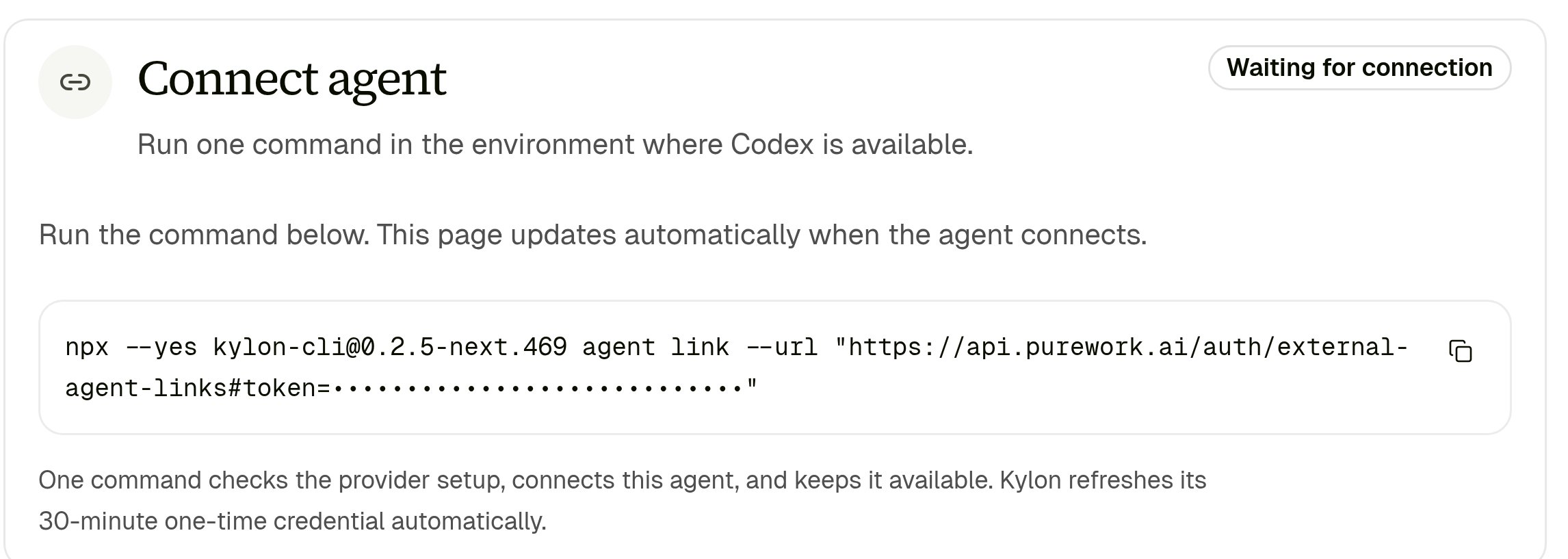
codex login) and continues afterwards. If anything is missing, the command tells you what to fix and stops without consuming the link — see Troubleshooting below, then rerun the same command.
Connecting an ACP agent works the same way, with the launch command appended to the line Kylon gives you:
3. Confirm it’s online
The profile page updates by itself. Local runtime turns Online and shows the provider, its version, and the Kylon CLI build running on that machine.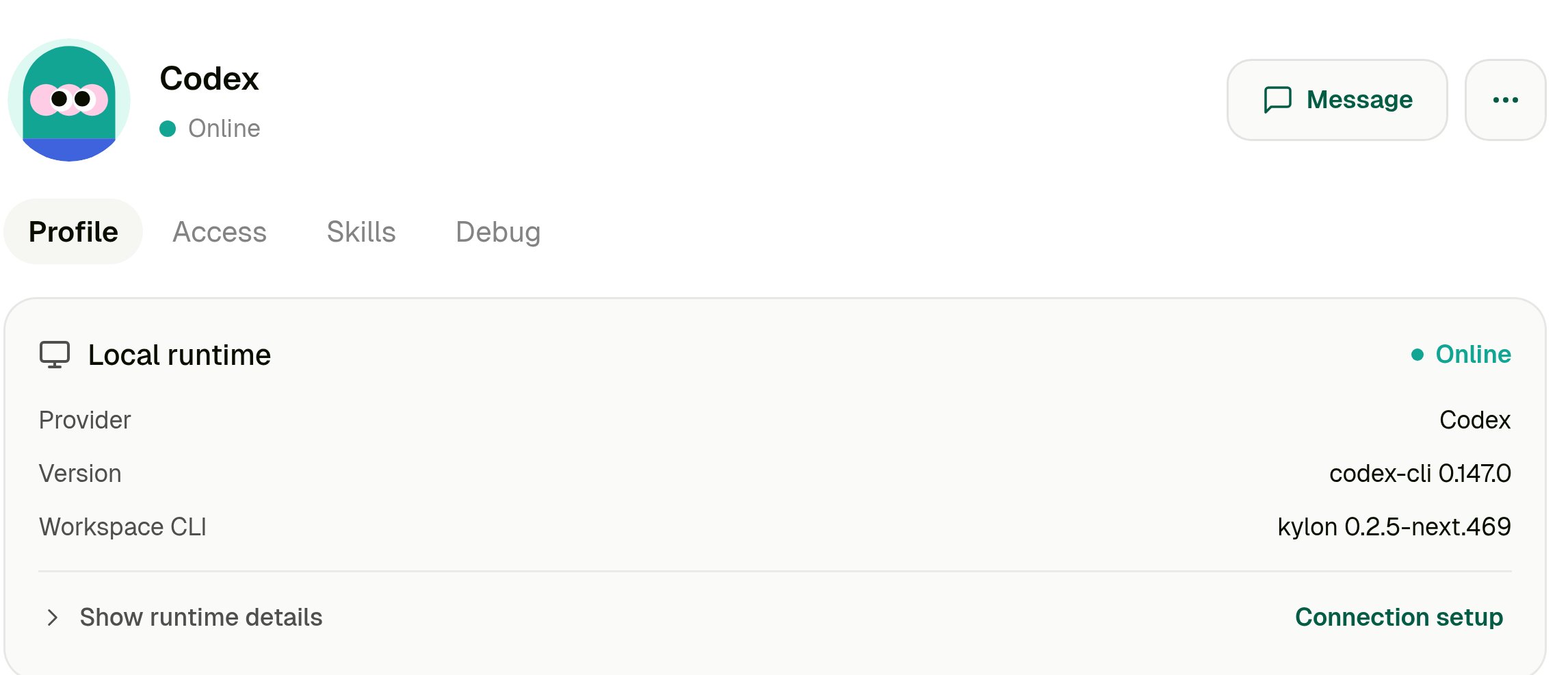

Keep it running
The connection is tied to the machine you ran the command on.- On macOS and Linux,
agent linkinstalls a user-level background service, so the runtime survives closing the terminal, rebooting, and sleep/wake. - The agent shows Offline whenever that machine is off or has no network.
- Upgrade the runtime with
npx --yes kylon-cli@latest gateway service upgrade. A plainnpm install -gupdates only your terminal’s binary, not the running service.
Reconnect, move, or remove
To move an external agent to a different machine, or to repair a broken connection, open the agent profile, choose Connection setup, then Reconnect or move and run the fresh command over there.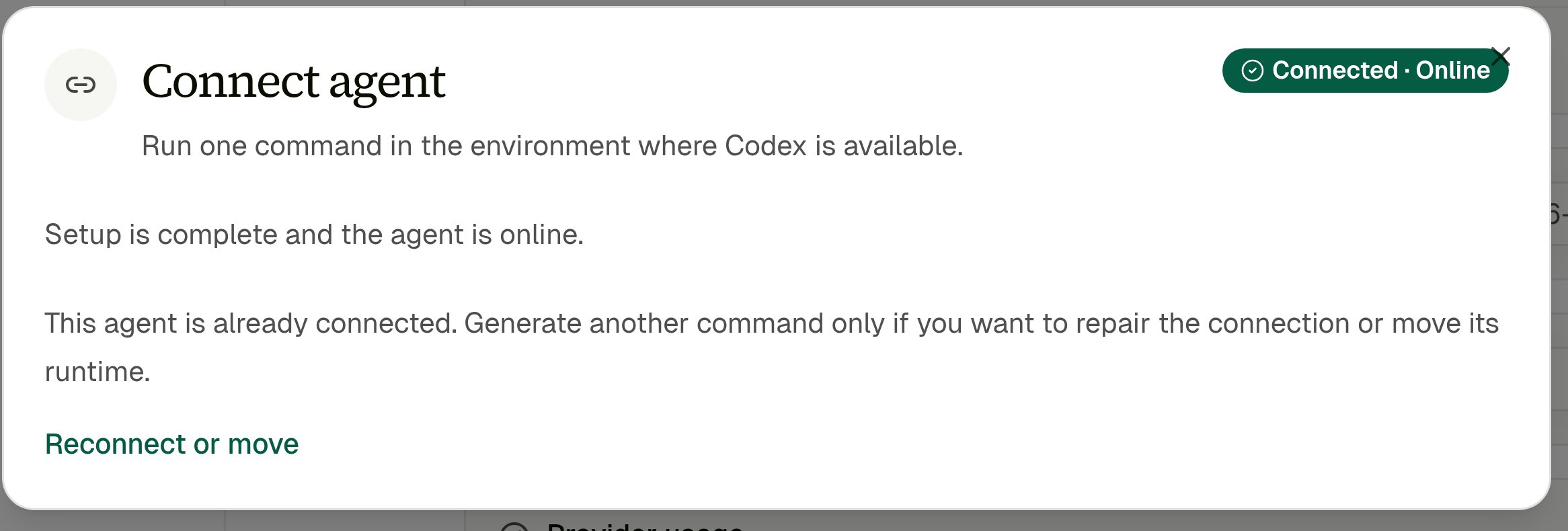
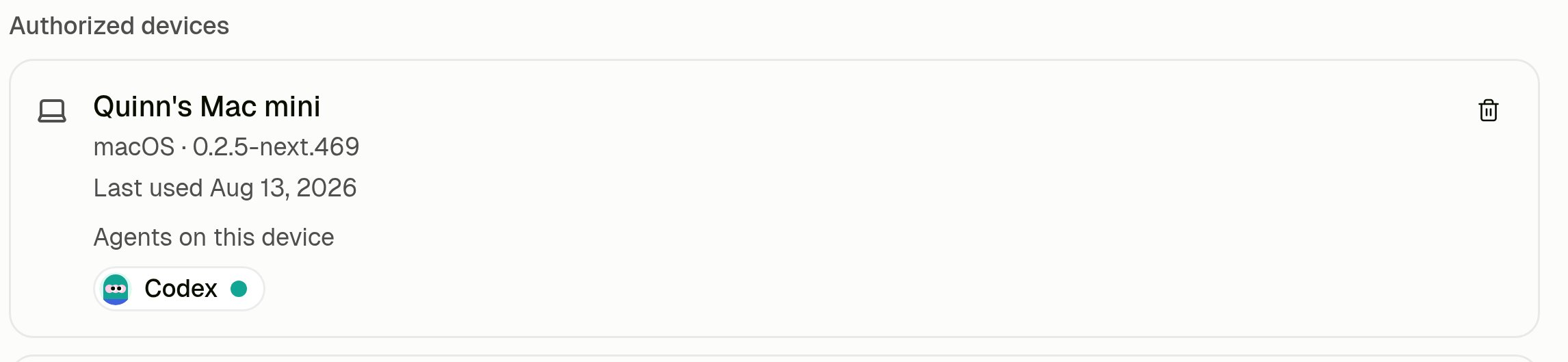
kylon disconnect clears the local registration only — it revokes nothing in the workspace.
Troubleshooting
The link command is safe to rerun: it consumes the one-time credential only after you answer y, so a command that stops early leaves the link usable.npx: command not found
Node.js isn’t installed in this environment. Install Node.js 22.15 or newer from nodejs.org (or brew install node, or your distro’s package manager), open a new shell so PATH picks it up, and rerun the command.
Kylon requires Node.js 22.15.0 or newer; the current runtime is 18.20.4.
Node.js is there but too old. Upgrade it — with nvm, nvm install 22 && nvm use 22 — then check node -v before rerunning.
If your machine has several Node versions, make sure the one on your PATH in this shell is the new one; which node and which npx should point at the same install.
... is not installed in this environment
The provider CLI isn’t on this machine’s PATH. Install it where the agent should run — for example npm install -g @openai/codex for Codex or npm install -g @anthropic-ai/claude-code for Claude Code — then rerun the same command.
... is not signed in. Run '<login command>' in an interactive terminal
Kylon normally starts the provider’s own login for you. In a non-interactive shell (a script, a CI job, an editor terminal) it can’t, so sign in manually in a real terminal — codex login, claude auth login, and so on — then rerun the command.
External-agent link not found, expired, or already used
The 30-minute window passed, or that link was already redeemed. Reopen the agent profile in Kylon and copy the fresh command; generating a new link invalidates the old one.
This Kylon installation is already connected to a different server
Or its sibling, ... already connected to workspace <id>. The machine is registered to another Kylon server or workspace, and one machine can hold only one registration. Run kylon disconnect on it, then rerun the link command.
The profile stays on Waiting for connection
The command hasn’t finished on the other machine, or it ran somewhere other than you think — check that you pasted it into the right host, and that it printedAgent "<name>" is connected. The profile updates on its own; there’s nothing to refresh.
The link succeeds but the agent goes Offline when you close the terminal
The background service wasn’t installed — this happens on machines with no user-level service manager, such as a bare container. Runnpx --yes kylon-cli@latest gateway service repair, or keep the runtime in the foreground with npx --yes kylon-cli@latest gateway run.
Still stuck? See CLI Troubleshooting and Agent Commands.