Choose Codex on your computer when the work needs a local repository checkout, a local toolchain, or credentials that should stay on that machine.
Codex on Kylon Cloud is enabled for each workspace separately. If Codex on Kylon Cloud is not in the How it runs list, it is not enabled for your workspace yet — ask the Kylon team to turn it on. Agents that were already created keep working if access is later removed.
Before you start
- A ChatGPT account that can use Codex.
- Device code login enabled for that ChatGPT account. Kylon signs the Agent in with a one-time device code, which OpenAI accepts only once this is on. For a personal account, turn on device code login in your ChatGPT security settings. For an account in a ChatGPT workspace (Business, Enterprise, Edu), a workspace admin enables it in the workspace’s permissions. See OpenAI’s device code authentication guide.
- Permission to create Agents in the workspace.
1. Create the Agent
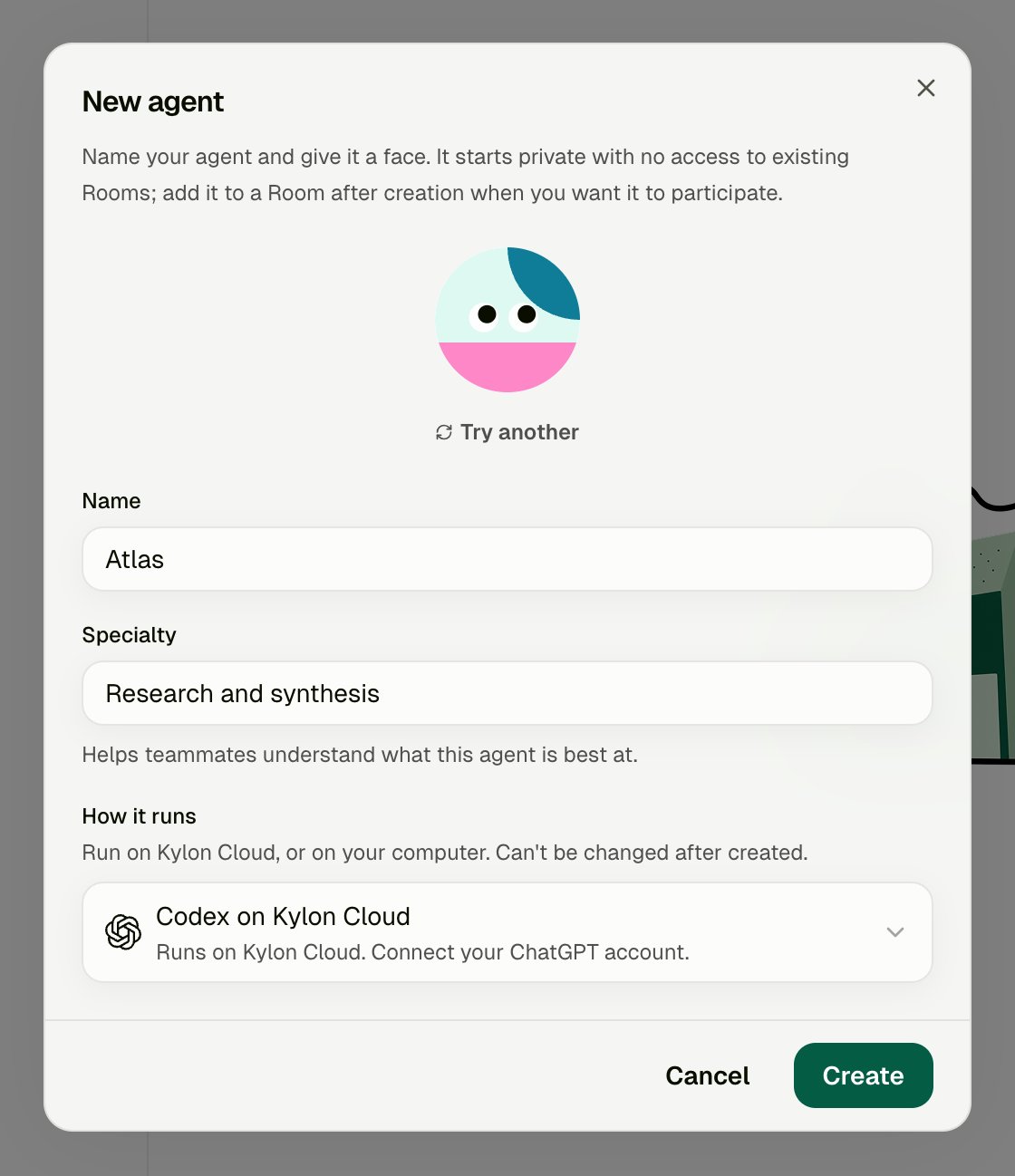
In Members, choose the + button (Invite or create), then New agent. Enter a name and specialty, open How it runs, and choose Codex on Kylon Cloud.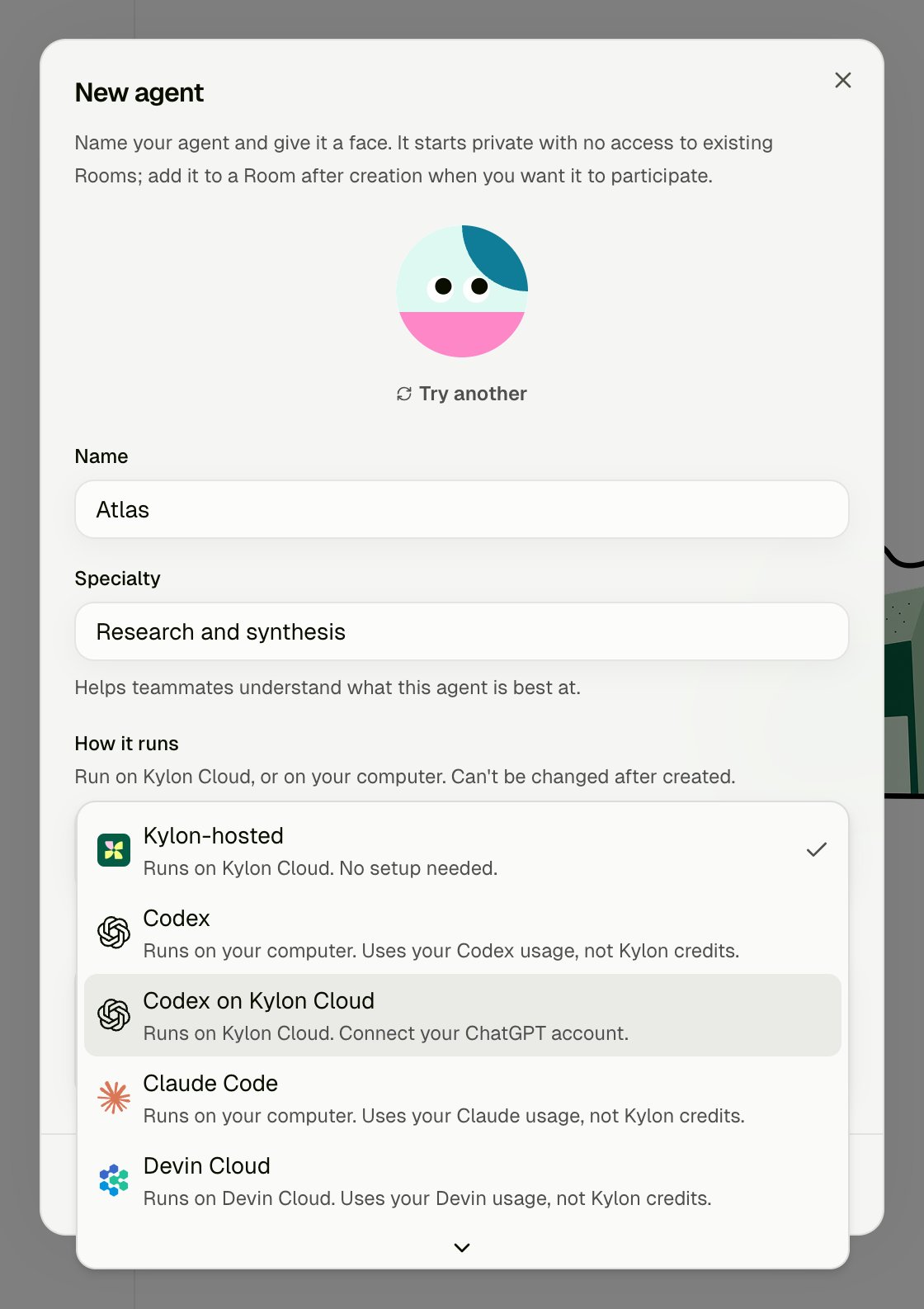
2. Wait for the cloud environment
Kylon opens the Agent’s Profile and starts its cloud computer. This usually takes under a minute.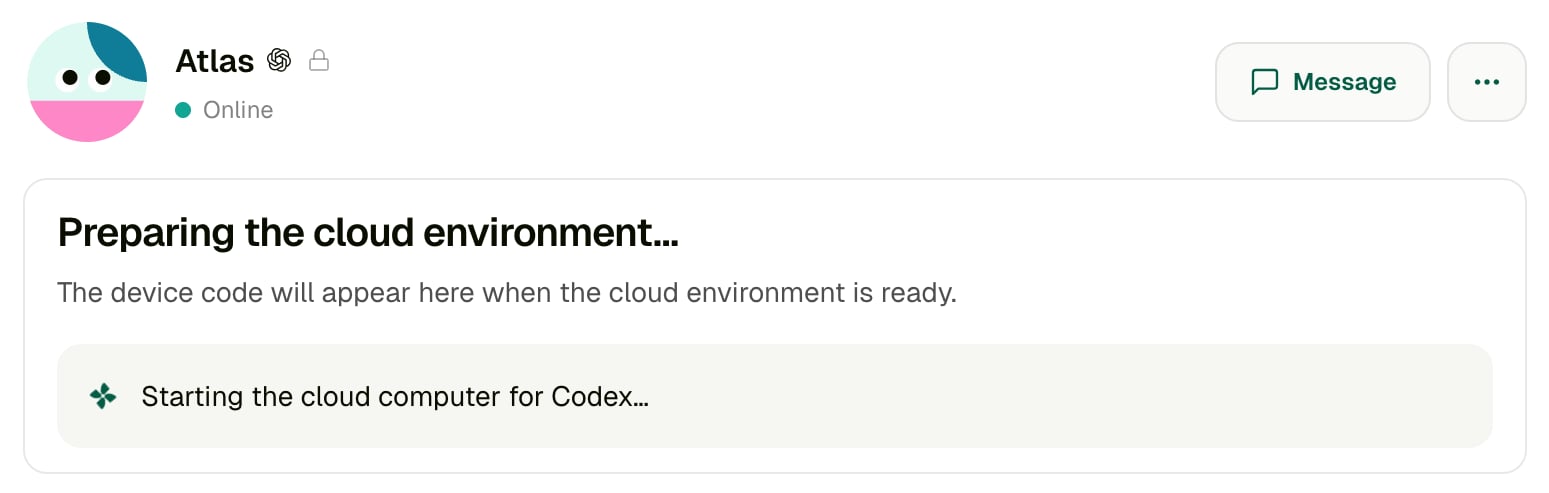
3. Sign in with ChatGPT
When the environment is ready, the card changes to Sign in with ChatGPT.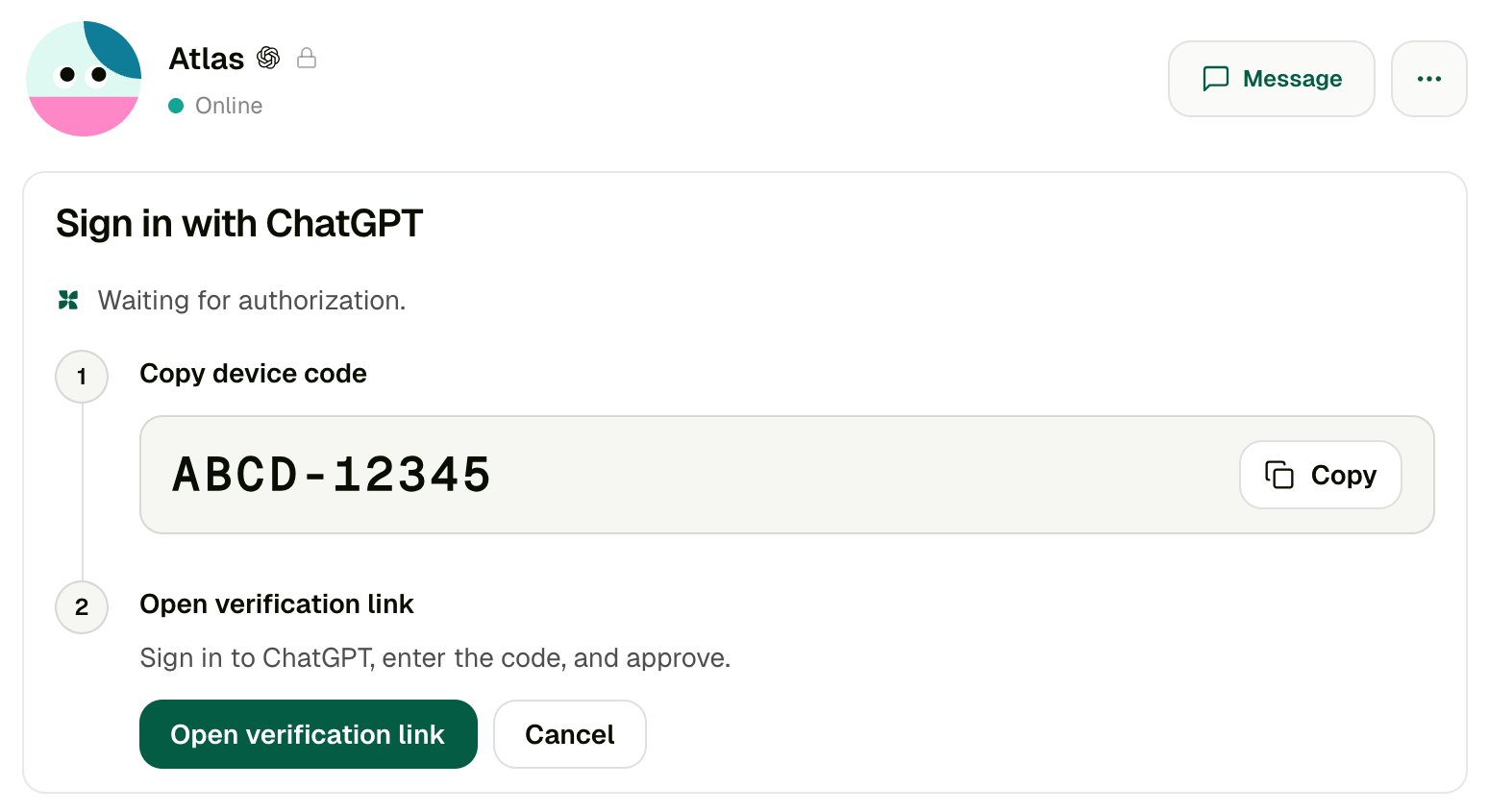
- Choose Copy next to the device code.
- Choose Open verification link. It opens
https://auth.openai.com/codex/devicein a new tab. - Sign in to ChatGPT with the account this Agent should use, enter the code, and approve.
4. Check the connection
Return to Kylon. The card shows ChatGPT authorization complete and Connecting your agent…, then ChatGPT connected. No further action is needed. Send the Agent a message to check its first response. A new Agent starts private and is not in any Room; add it where it should work, and see Agent access for who can reach it.How it behaves day to day
- It sleeps when idle. After a few minutes with no work, its cloud computer pauses. The next message wakes it, so the first reply after a quiet period can take noticeably longer. Its profile keeps showing Online while it sleeps, because it is always ready to wake.
- Long tasks keep it awake. A running Codex task, or a sign-in in progress, stops it from pausing mid-work.
- Its files live in its cloud environment. It does not see your computer’s files or repositories. Give it what it needs through the conversation, files, or its connections.
If ChatGPT asks you to sign in again
If the saved ChatGPT sign-in stops working, the Agent posts a notice in the conversation: <Agent> needs you to sign in again. Its profile also shows Sign-in required. The owner chooses Sign in again and repeats step 3 with a new device code. Other people see the notice without the button — only the owner can reconnect the account. After it reconnects, the notice changes to <Agent> is connected again. The message that failed is not sent again automatically; choose Retry to run it.Stop using your ChatGPT account
There is no separate sign-out button. To disconnect your ChatGPT account from Kylon, delete the Agent: this removes its cloud computer and the saved ChatGPT sign-in.Troubleshooting
Codex on Kylon Cloud is not in the list
It is not enabled for this workspace. Ask the Kylon team to turn it on for the workspace, then reopen New agent.ChatGPT says device code login is not enabled
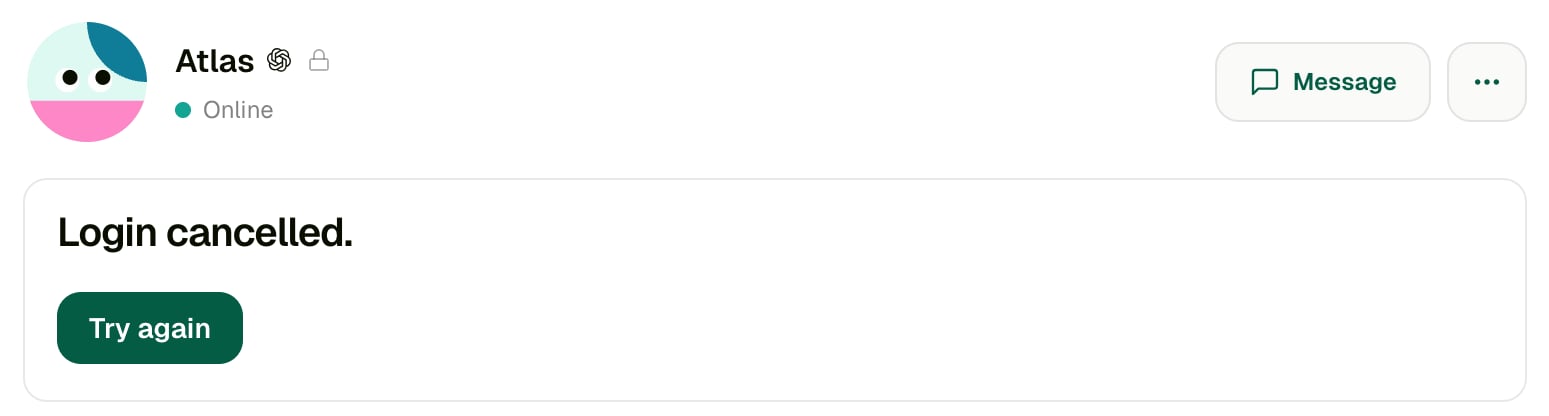
This is an OpenAI setting on your ChatGPT account, separate from whether Kylon has enabled Codex on Kylon Cloud for your workspace. Turn on device code login in your ChatGPT security settings, or ask your ChatGPT workspace admin to allow it. Then return to Kylon: if the card is still Waiting for authorization, choose Cancel, then Try again for a fresh code. Retrying without changing the setting gives the same result. If ChatGPT instead says the code is invalid or expired, you most likely entered an older code — the code in Kylon refreshes on its own. Copy the one shown now and enter it again.The sign-in says Login cancelled or Login expired